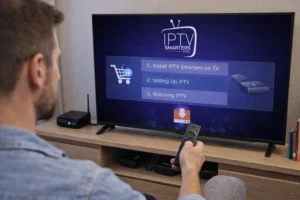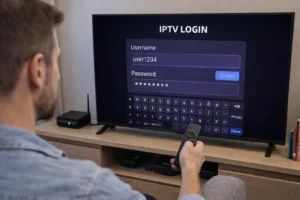
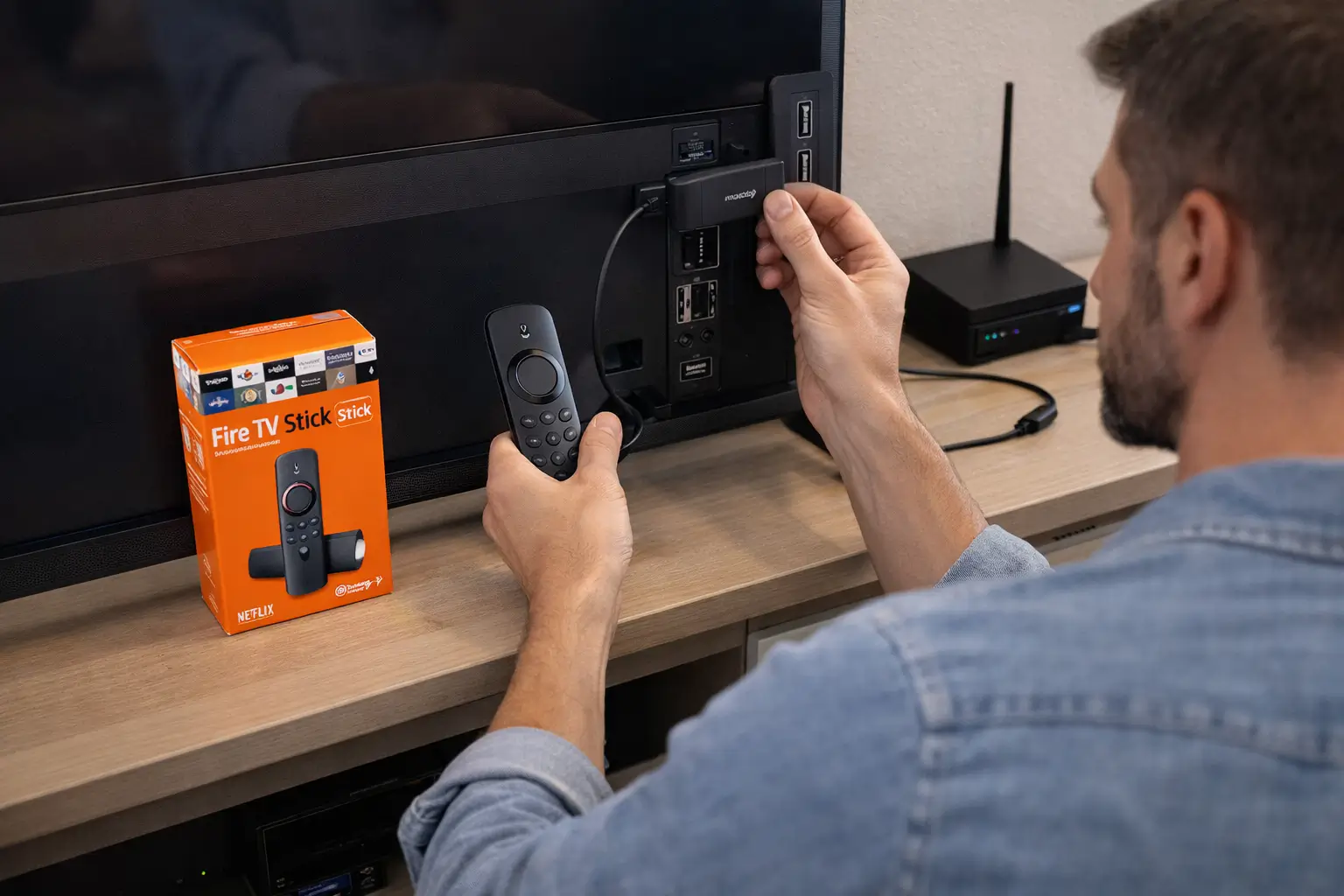
To install IPTV on Amazon Fire Stick, begin by enabling Apps from Unknown Sources in your Developer Options settings, then download the Downloader app from the Amazon Store to sideload your preferred IPTV player, the whole process takes less than 10 minutes from start to finish.
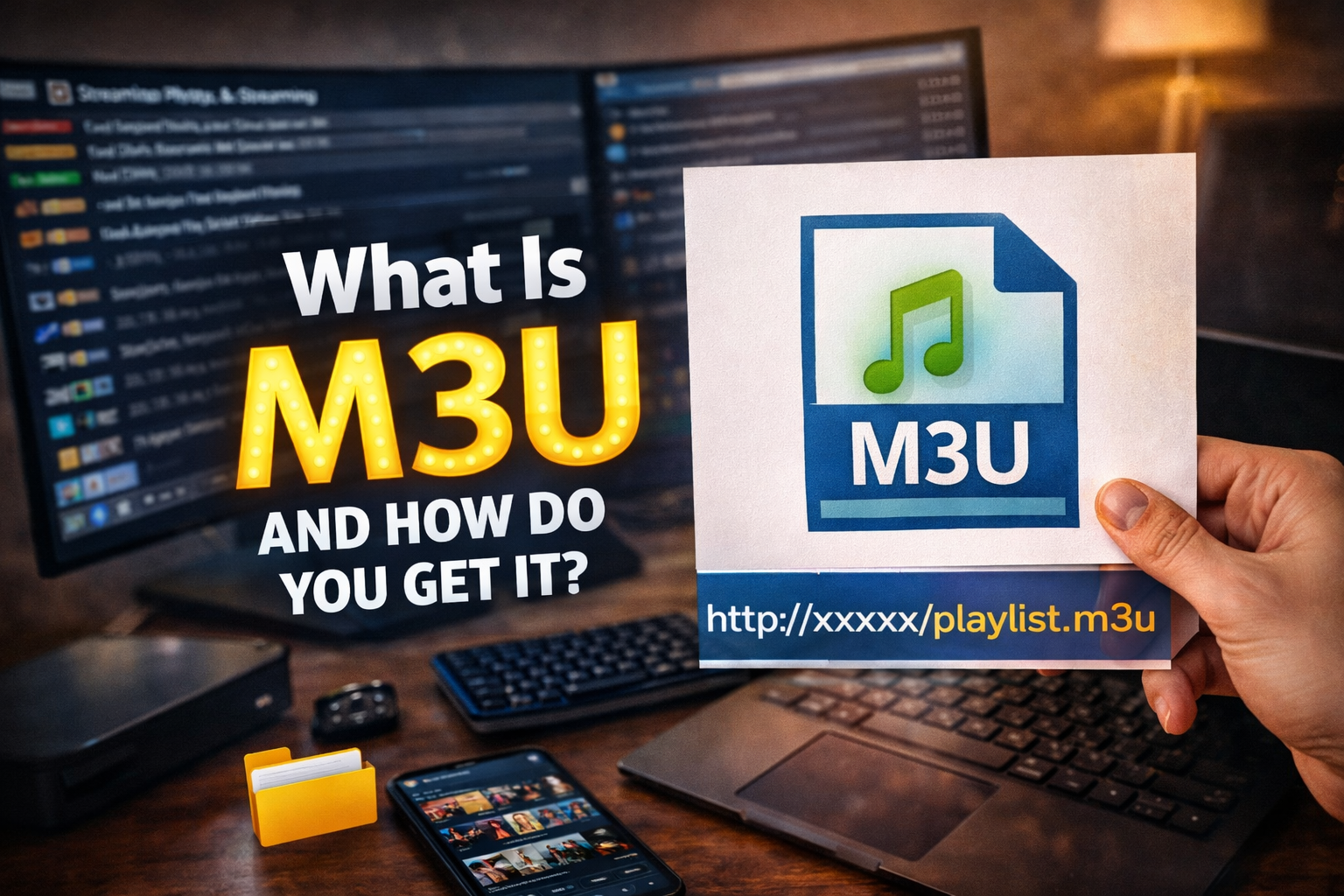
Once your player is installed, simply enter the M3U playlist URL or Xtream Codes credentials provided by your provider to load your full channel list instantly. For a smooth, buffer-free experience from day one, pairing your Fire Stick with a trusted service like IPTV Subscription gives you a stable playlist and reliable streams across all your favorite live channels and on-demand content.
1. Prepare Your Fire Stick for App Sideloading
Before installing any IPTV app, you need to allow your Fire Stick to install apps from outside the Amazon App Store. This setting is disabled by default for security reasons, so enabling it is the very first thing to do.
Open Settings from the Fire Stick home screen using your remote.
Go to My Fire TV (or Device on older models) and select it.
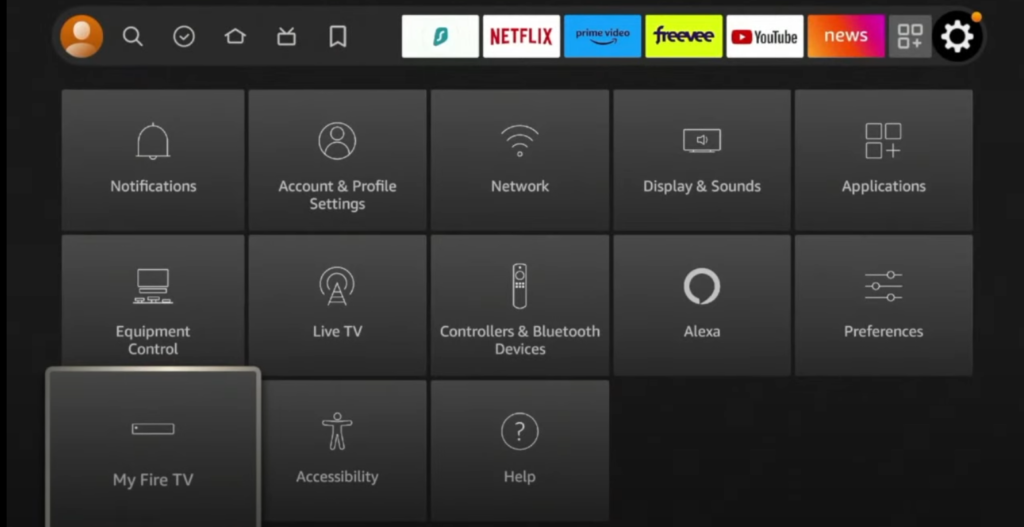
Tap Developer Options, if you do not see it, it may be hidden under About.
Enable Apps from Unknown Sources by toggling it to ON.
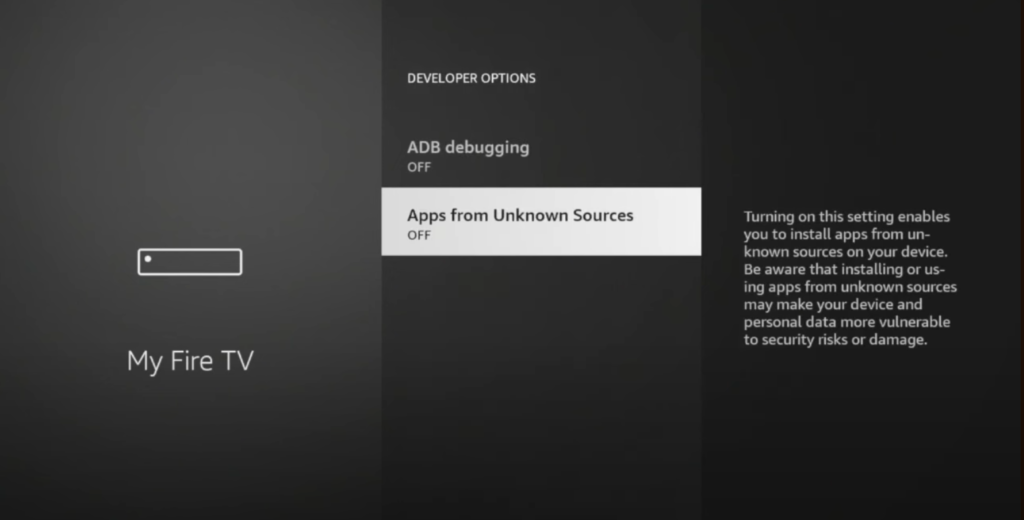
Enable ADB Debugging as well, this ensures full sideload compatibility.
Confirm the warning prompt that appears, your device is now ready for installation.
2. Install the Downloader App
The Downloader app is a free tool available directly on the Amazon App Store. It acts as a browser and file manager that lets you download and install any APK file directly onto your Fire Stick, including your IPTV player of choice.
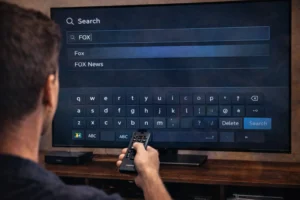
Press the Home button and navigate to the search icon at the top of the screen.
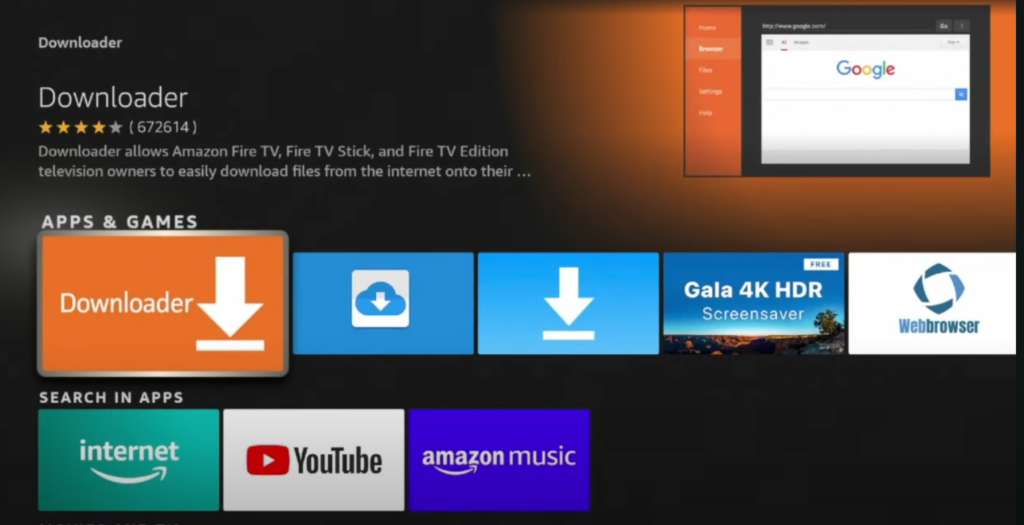
Type ‘Downloader‘ in the search bar and select the app by AFTVnews.
Click Download and wait for the installation to complete — it takes under a minute.
Open the Downloader app once installed and allow any permissions it requests.
Enable JavaScript inside Downloader settings for better compatibility with download pages.
3. Download and Install Your IPTV Player
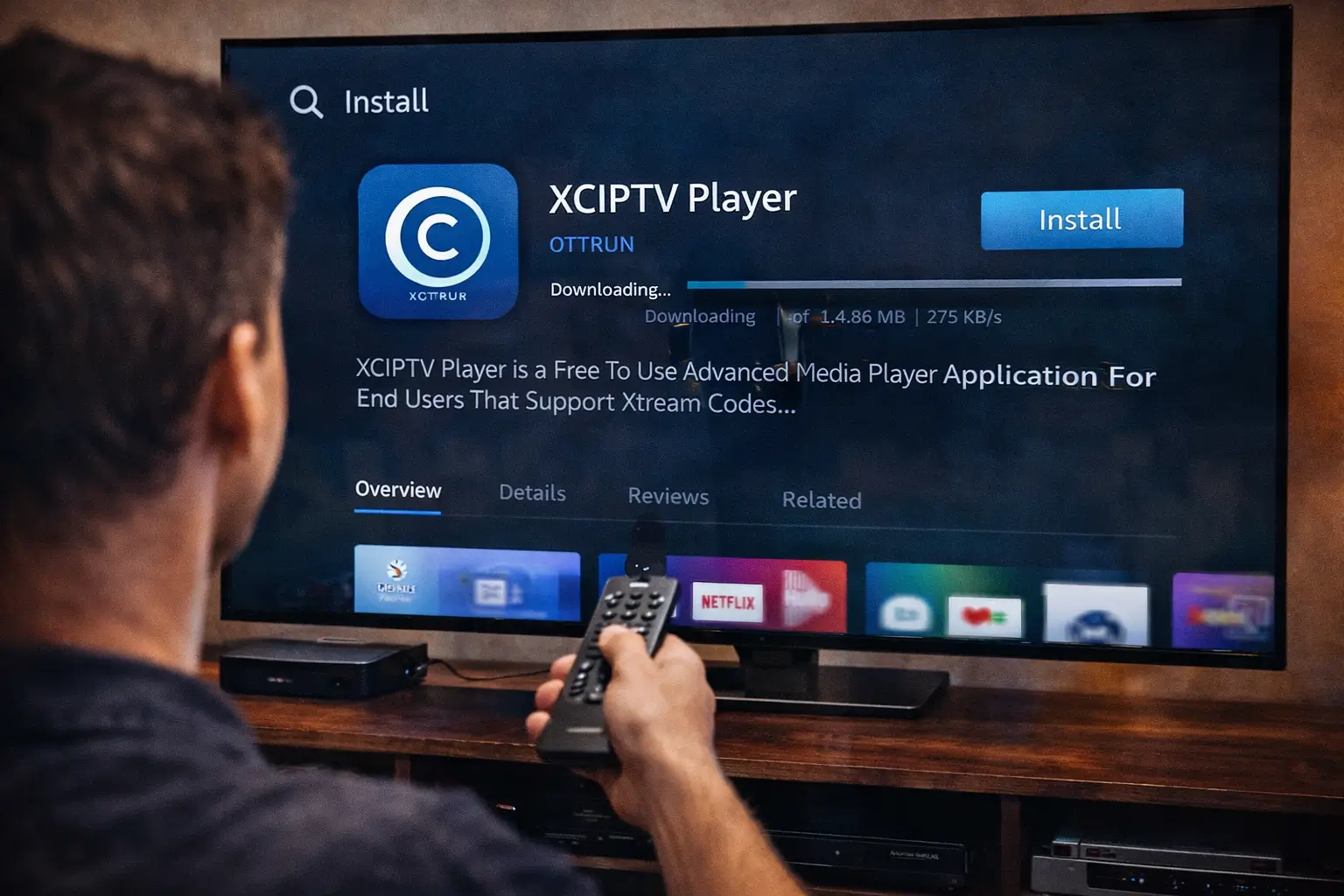
Now you will use the Downloader app to fetch and install your IPTV player. The most popular and recommended players are TiviMate, IPTV Smarters Pro, and GSE Smart IPTV. TiviMate is widely considered the best option for Fire Stick users.
Open the Downloader app and tap the URL bar at the top of the screen.
Type the direct APK URL for your chosen IPTV player, for TiviMate, use the official APK mirror link from the developer’s website.
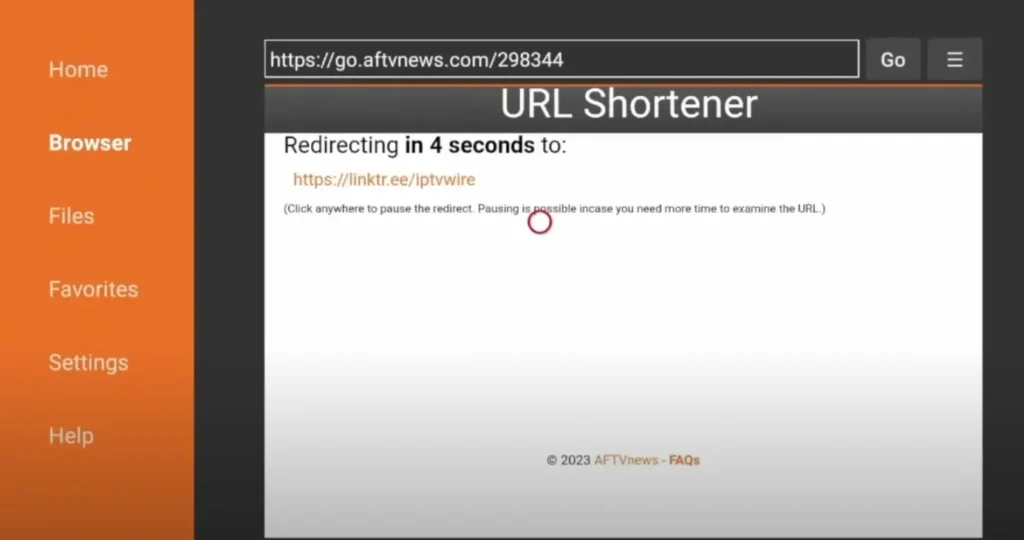
Press Go and wait for the file to finish downloading onto your device.
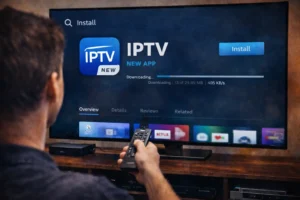
Tap Install when prompted — the installation only takes a few seconds.
Select Done (not Open) once installed, and return to the Downloader home screen.
Delete the APK file to free up storage space when prompted by the app.
4. Add Your IPTV Subscription to the Player
With your player installed, the next step is to connect it to your IPTV subscription. You will need either an M3U playlist URL or Xtream Codes login details — both are provided by your IPTV provider when you subscribe.
Open your IPTV player (e.g., TiviMate or IPTV Smarters) from the home screen.
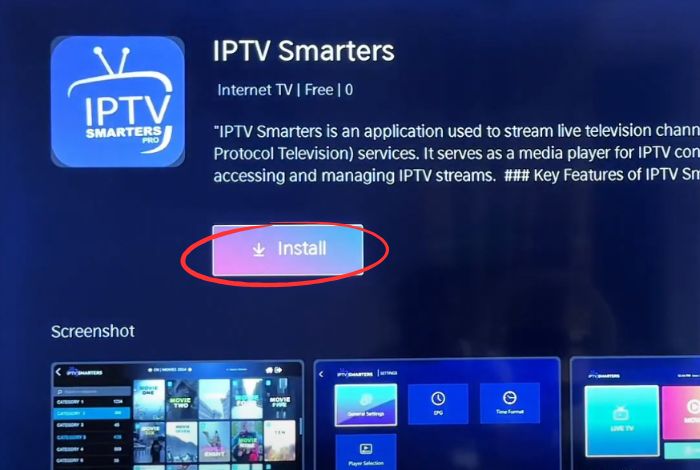
Select Add Playlist or Add Provider depending on the app you chose.
Choose M3U URL if your provider gave you a playlist link, then paste or type the URL.
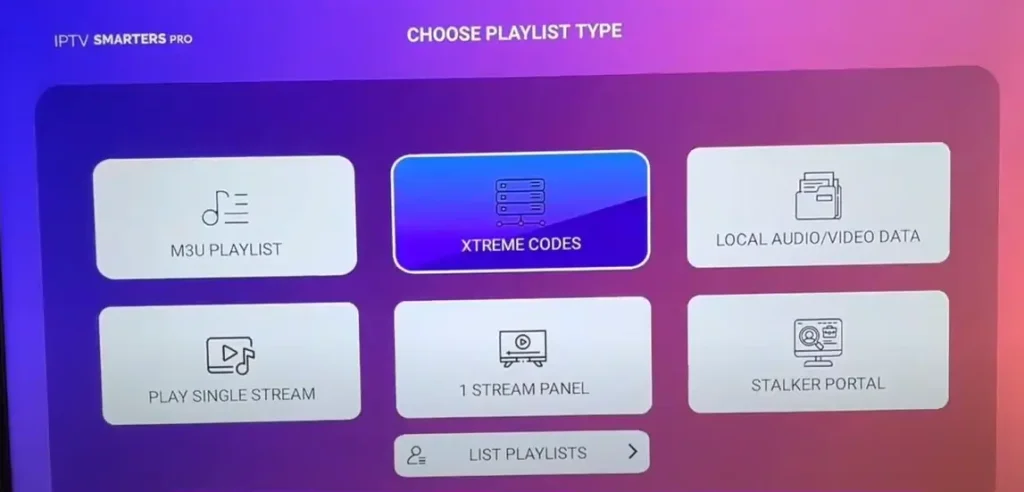
Choose Xtream Codes if your provider gave you a server URL, username, and password instead.
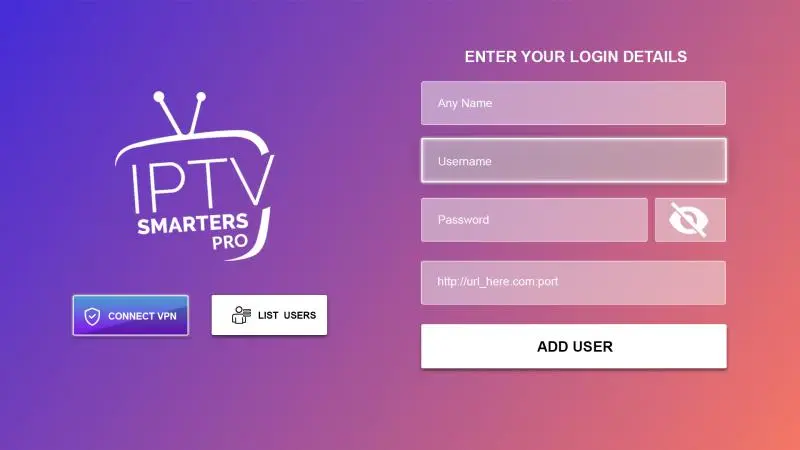
Enter your credentials exactly as provided, pay close attention to upper and lower case.
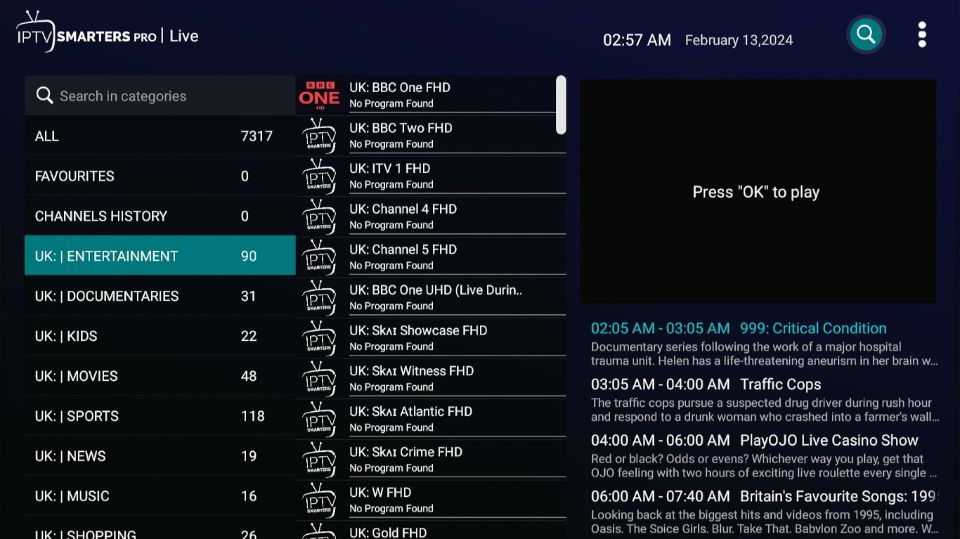
Tap Add or Connect and wait for the app to load and sync your full channel list.
5. Configure Settings and Start Watching
Once your channel list has loaded, you are ready to start watching. However, taking a few extra minutes to configure the player settings will significantly improve your daily streaming experience and help prevent common issues like buffering or missing EPG data.
Set your preferred video player — ExoPlayer is recommended for most streams on Fire Stick.
Load the EPG (Electronic Programme Guide) using the EPG URL from your provider for a live TV guide.
Organize your channels into favorites or categories so you can find content quickly.
Adjust buffer size in settings to 5–10 seconds to reduce interruptions on slower connections.
Connect via Ethernet using a Fire Stick Ethernet adapter for a more stable stream over Wi-Fi.
Restart the app if channels do not load on the first attempt — this clears any sync errors.
Frequently Asked Questions
Can I install IPTV on any Amazon Fire Stick model?
Yes. The installation process works on all Fire Stick models including the Lite, HD, 4K, and 4K Max. Older models may run slightly slower but the steps are identical.
Is TiviMate free to use on Fire Stick?
TiviMate has a free version with basic features. The premium version costs around $4.99 per year and unlocks multi-screen viewing, EPG, and recording features.
Why are my channels not loading after I added the playlist?
This is usually caused by an incorrect M3U URL or expired subscription. Double-check the link and verify your account is still active with your provider.
Do I need a VPN to use IPTV on Fire Stick?
A VPN is not required but is recommended if your ISP throttles streaming traffic. A VPN can also protect your privacy and unlock geo-restricted content.
What is the best IPTV player for Fire Stick?
TiviMate is widely regarded as the best IPTV player for Fire Stick thanks to its clean interface, EPG support, multi-screen layout, and reliable performance.
Can I watch IPTV on Fire Stick without a subscription?
No. You need an active IPTV subscription from a provider to get an M3U link or Xtream Codes credentials. The player app alone does not include any channels.
How do I update my IPTV app on Fire Stick?
For apps installed from the App Store, updates come automatically. For sideloaded APKs, you need to download and install the new version manually using the Downloader app.