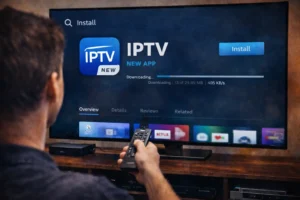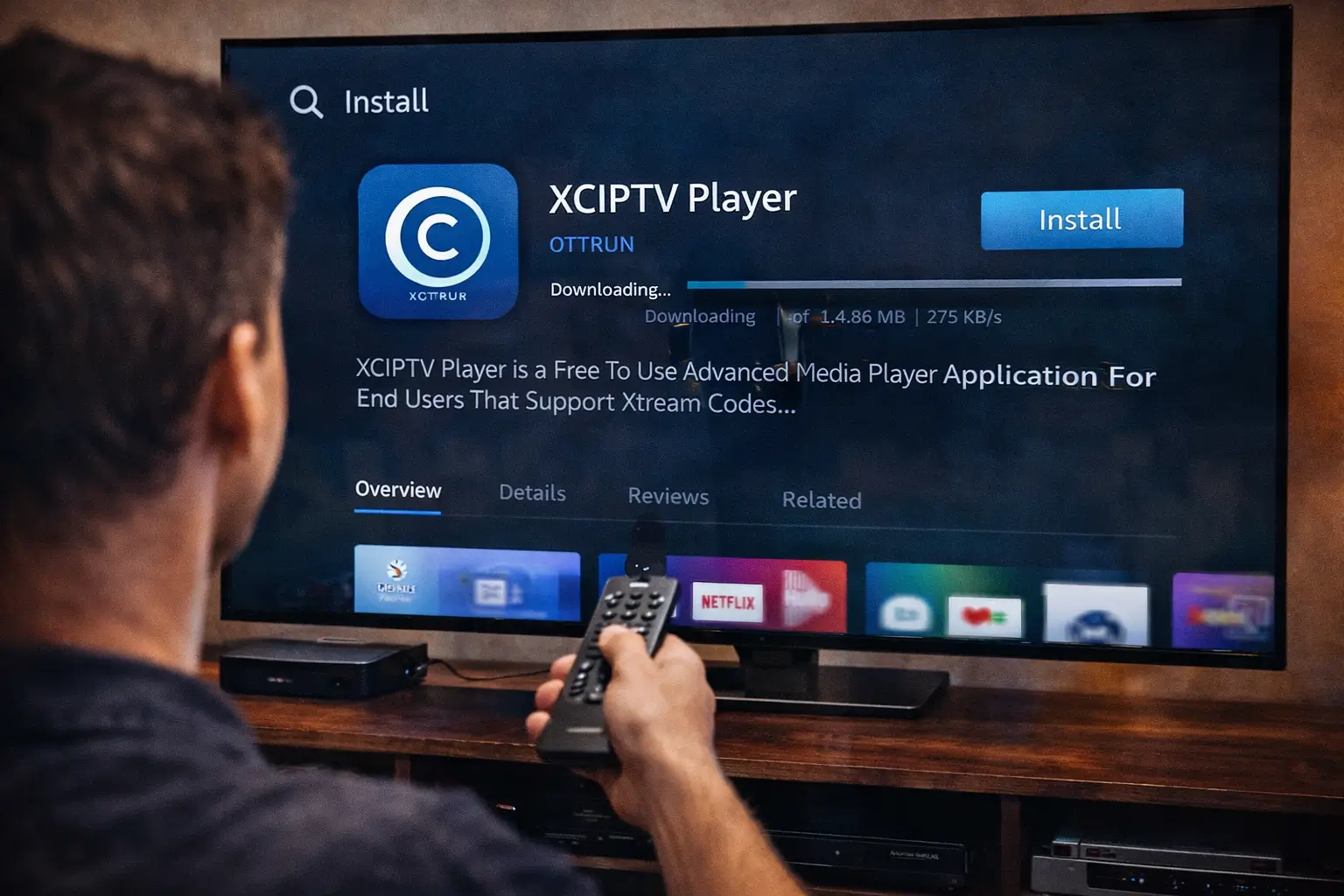
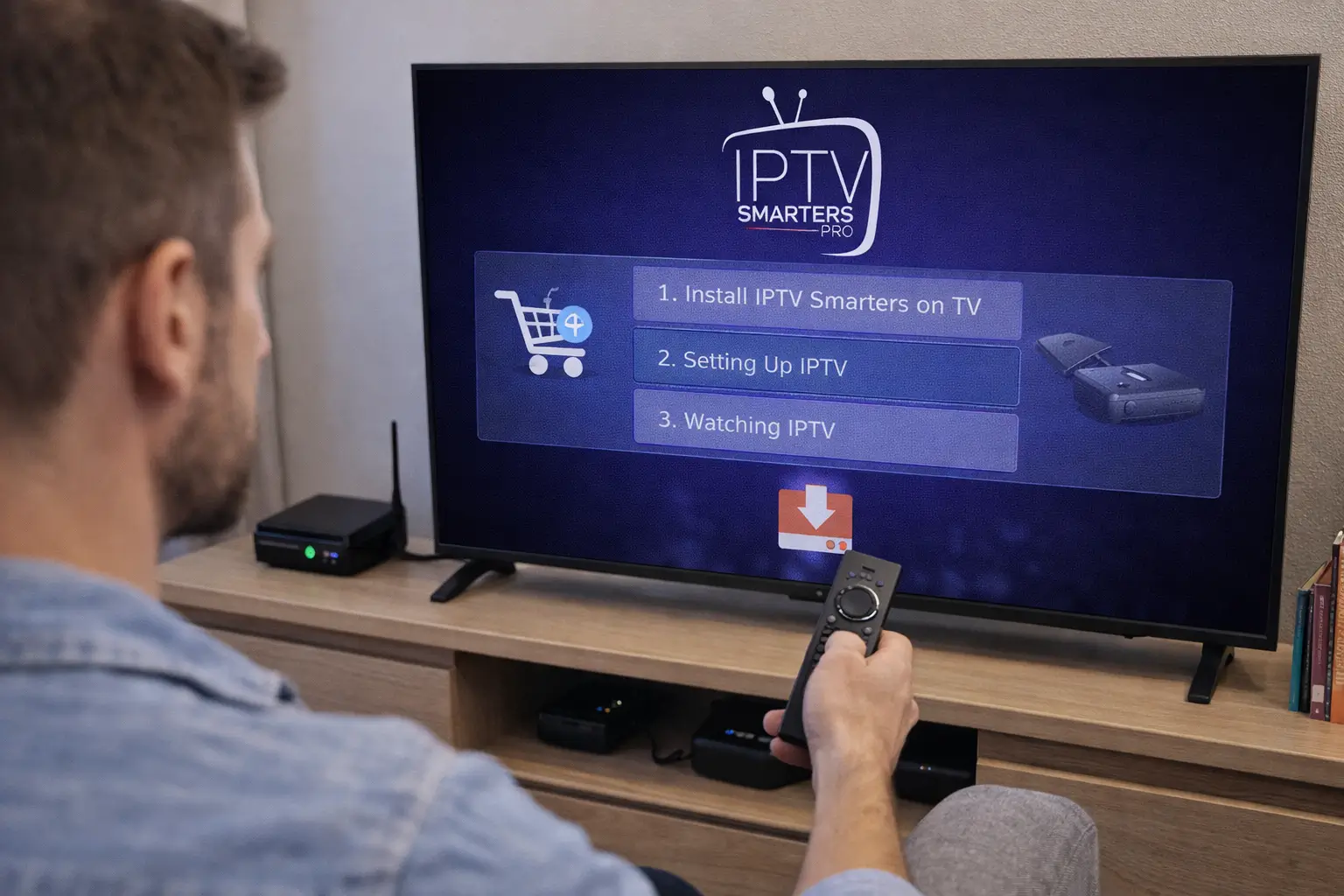
To install IPTV Smarters Pro on your TV, begin by opening the app store on your smart TV or streaming device, search for IPTV Smarters Pro, install it directly, and then log in using the Xtream Codes credentials or M3U URL provided by your IPTV provider.
The app is available on Android TV, Samsung Smart TV, LG webOS, Amazon Fire TV, and most other major platforms, making it one of the most versatile IPTV players available today. Pairing it with a trusted service like IPTV Subscription ensures you get a valid M3U link or Xtream login delivered instantly after signup. This guide walks you through the full installation process step by step, regardless of which TV or device you are using.
Step 1 — Identify Your TV Type and the Right Installation Method
The installation method for IPTV Smarters Pro varies slightly depending on what kind of TV or device you have. Identifying your platform before you start will save you time and help you avoid confusion during the process.
1. Check your TV’s operating system, look for Android TV, Samsung Tizen, LG webOS, or Roku in the settings menu.
- Android TV users can install IPTV Smarters Pro directly from the Google Play Store with no extra steps.
- Samsung Smart TV users need to use the Samsung App Store or sideload via a USB drive depending on the TV model.
- LG webOS users can find IPTV Smarters in the LG Content Store on compatible models.
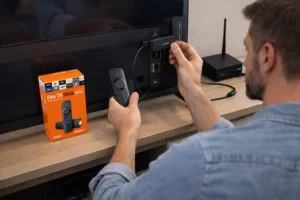
- Amazon Fire TV users can install the app from the Amazon Appstore or sideload it using the Downloader app.
Older or non-smart TVs can still run IPTV Smarters by connecting an Android TV box or Fire Stick to an HDMI port.
Step 2 — Download and Install IPTV Smarters Pro
Once you know which platform you are on, downloading IPTV Smarters Pro is straightforward. The app is free to download and the installation takes only a few minutes regardless of your device type.
1. Open the app store on your device, Google Play Store, Amazon Appstore, or LG Content Store.
2. Search for ‘IPTV Smarters Pro‘ using the on-screen keyboard or voice search if available.
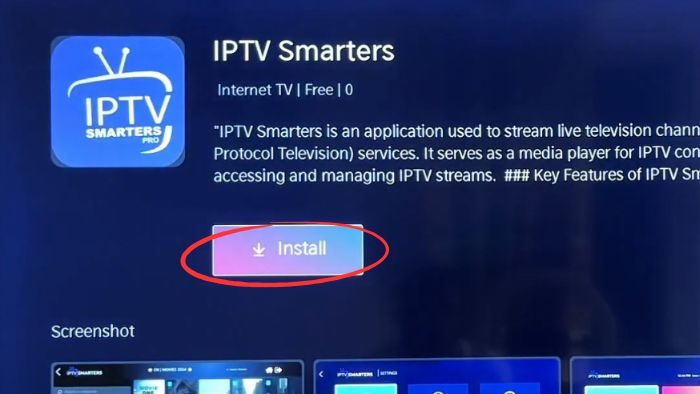
3. Press Download or Install and wait for the process to complete, it usually takes under two minutes.
4. For sideloading on Fire TV, use the Downloader app to fetch the APK directly from the official IPTV Smarters website.
5. Launch the app once installed, you will be greeted by the setup screen asking you to add a playlist or provider.
Step 3 — Choose Your Login Method and Enter Your Credentials
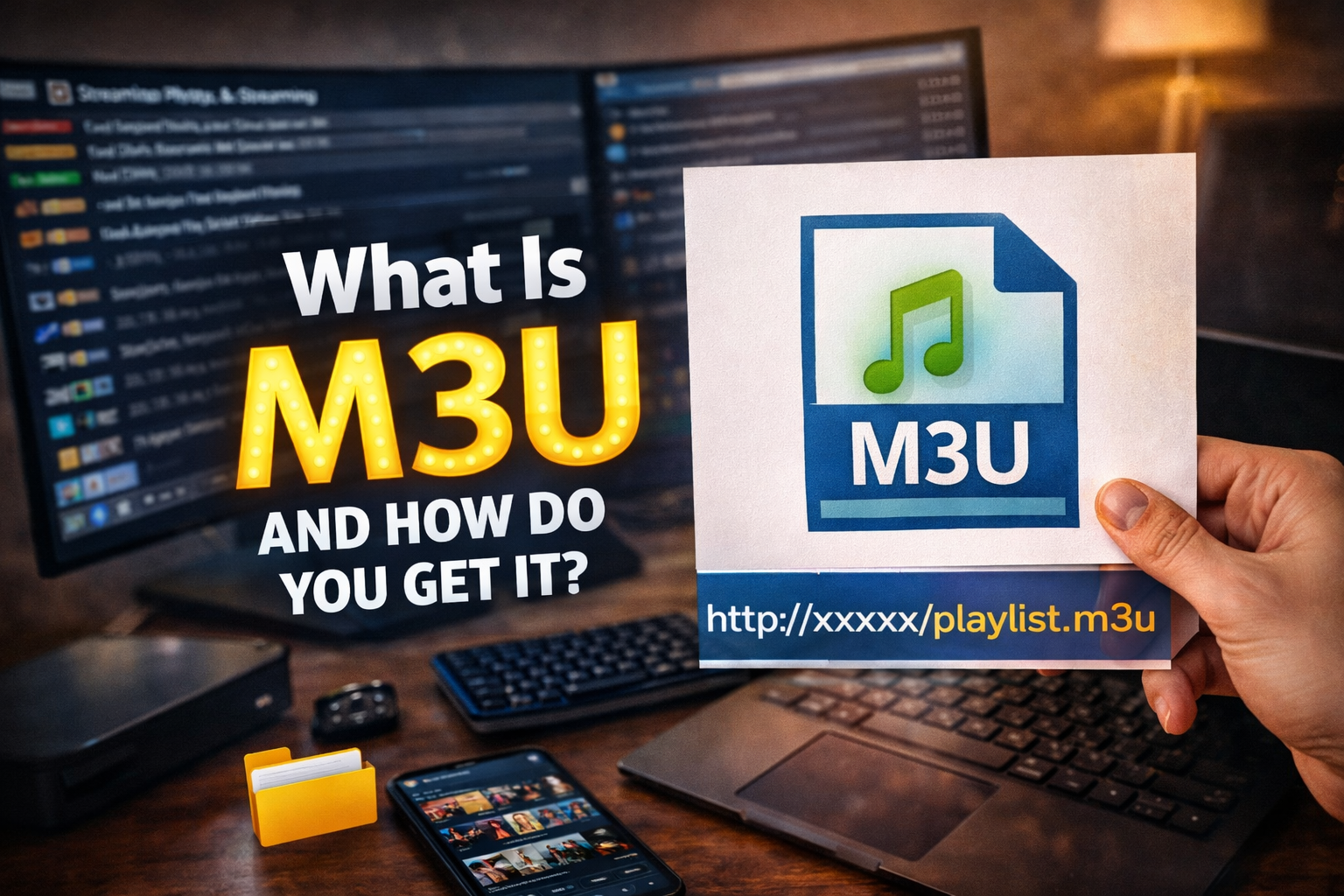
IPTV Smarters Pro supports two main methods for connecting to your IPTV subscription: Xtream Codes API and M3U URL. Both are widely supported by providers, and your choice depends on what credentials your provider sent you after signup.
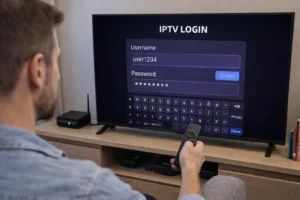
1. Open IPTV Smarters Pro and tap the ‘Add New User‘ or ‘Login‘ button on the welcome screen.
2. Choose ‘Login with Xtream Codes API‘ if your provider sent you a server URL, username, and password.
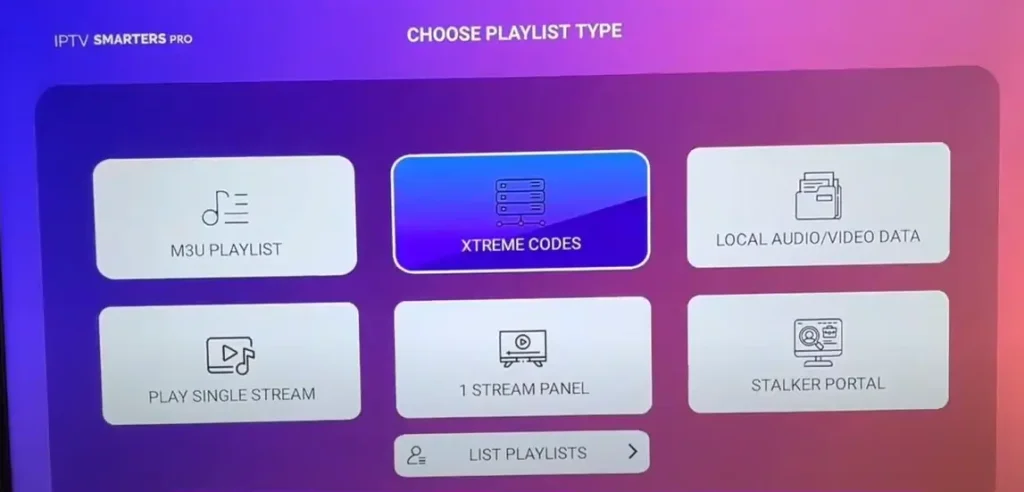
3. Choose ‘Load your playlist or File/URL‘ if your provider sent you an M3U link instead.
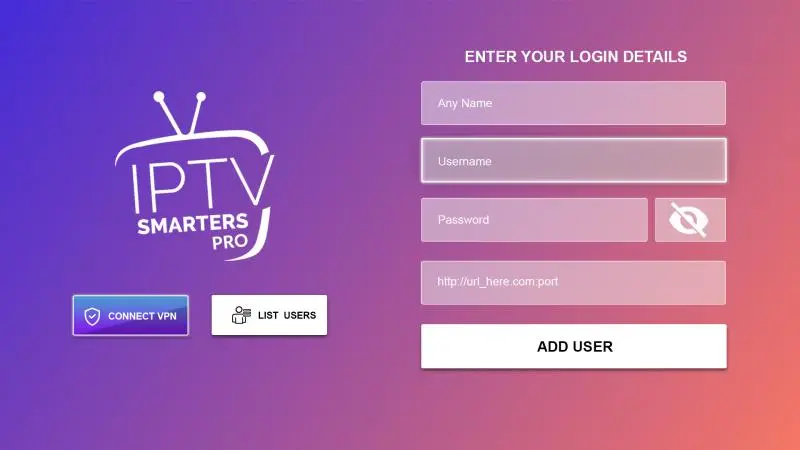
4. Enter your provider name in the first field, this is just a label for your own reference inside the app.
5. Fill in your server URL, username, and password exactly as received, these fields are case-sensitive.
6. Tap Add User or Load to confirm, the app will connect to the server and begin loading your channel list.
Step 4 — Navigate the App and Organize Your Content
Once your channel list has loaded successfully, IPTV Smarters Pro gives you access to live TV, a full EPG guide, movies, and series all within the same interface. Taking a few minutes to organize the app will make your daily viewing experience much smoother.
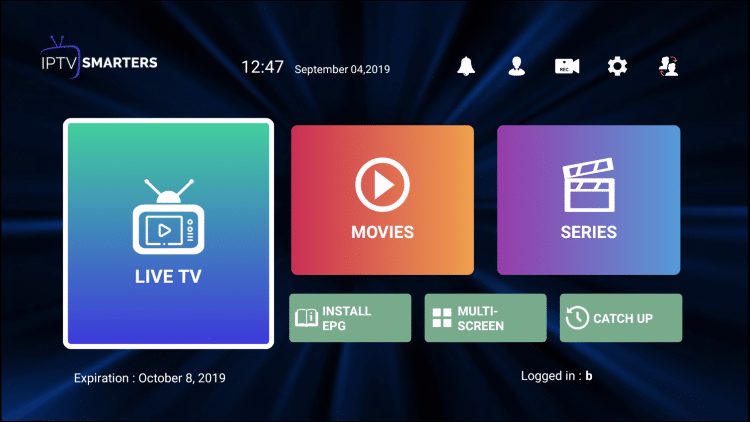
1. Explore the main menu — you will find tabs for Live TV, Movies, Series, and Catch-Up depending on your plan.
2. Browse the Live TV section and tap any channel to test that streams are loading correctly.
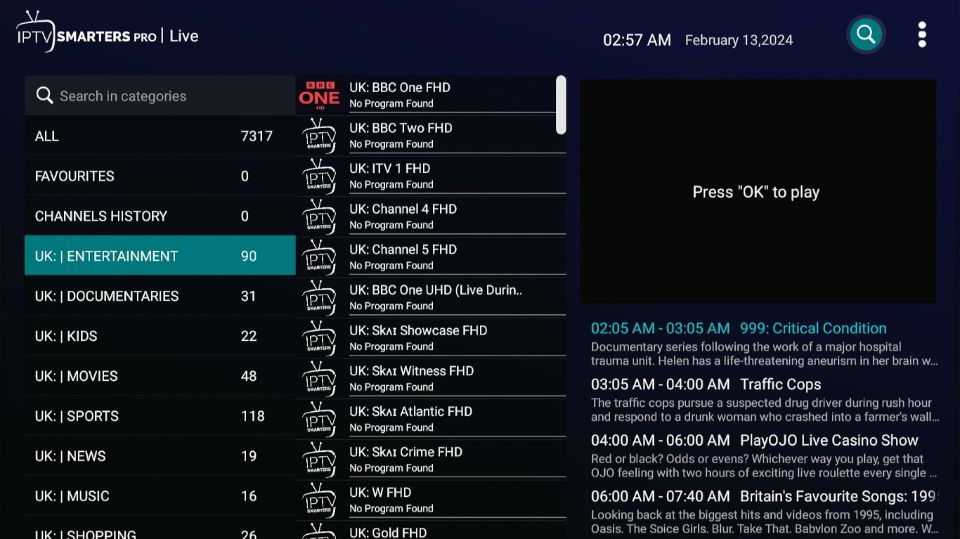
3. Set up the EPG by going to Settings and confirming the Electronic Programme Guide is enabled for your account.
4. Add channels to favorites by long-pressing on a channel name, this makes your most-watched content easy to access.
5. Adjust the video player settings — go to Settings and select the player type best suited for your device.
Step 5 — Troubleshoot Common Issues After Installation
If IPTV Smarters Pro is not working as expected after installation, most issues are easy to resolve without contacting support. The most common problems are caused by incorrect credentials, a slow internet connection, or an outdated version of the app.
- Re-check your credentials if you see an authentication error — copy and paste them directly from your email to avoid typos.
- Test your internet speed — IPTV Smarters requires at least 10 Mbps for HD and 25 Mbps for 4K streams.
- Clear the app cache by going to your TV’s app settings and selecting Clear Cache, then relaunch the app.
- Update the app if streams load but freeze frequently — an outdated version may be incompatible with the server.
- Switch the video player inside the app settings from Software to Hardware decoding if you experience playback errors.
- Reinstall the app completely as a last resort if none of the above steps resolve the issue — this clears all corrupted data.
Frequently Asked Questions
Is IPTV Smarters Pro free to install?
Yes, the app itself is completely free to download and install. You only need a paid IPTV subscription from a provider to access live channels and content.
Can I install IPTV Smarters Pro on a Samsung Smart TV?
Yes, IPTV Smarters Pro is available on the Samsung App Store for compatible models. Older Samsung TVs may require a workaround such as connecting an Android TV box.
What is the difference between Xtream Codes and M3U on IPTV Smarters?
Xtream Codes uses separate server, username, and password fields. M3U is a single URL link. Both connect you to the same content — the method depends on what your provider sends you.
Why is my IPTV Smarters Pro showing a black screen?
A black screen usually means incorrect credentials, an expired subscription, or a server outage. Verify your login details and check with your provider if the issue continues.
Can I add multiple IPTV providers in IPTV Smarters Pro?
Yes. IPTV Smarters Pro allows you to add multiple playlists or providers within the same app and switch between them easily from the main profile screen.
Does IPTV Smarters Pro work on LG Smart TVs?
Yes, IPTV Smarters Pro is available on the LG Content Store for webOS TVs. If your LG model is not supported, connecting a Fire Stick or Android box is the best alternative.
How many devices can I use with one IPTV Smarters Pro account?
The app itself has no device limit, but your IPTV subscription plan determines how many simultaneous streams are allowed, typically between 1 and 3 connections.