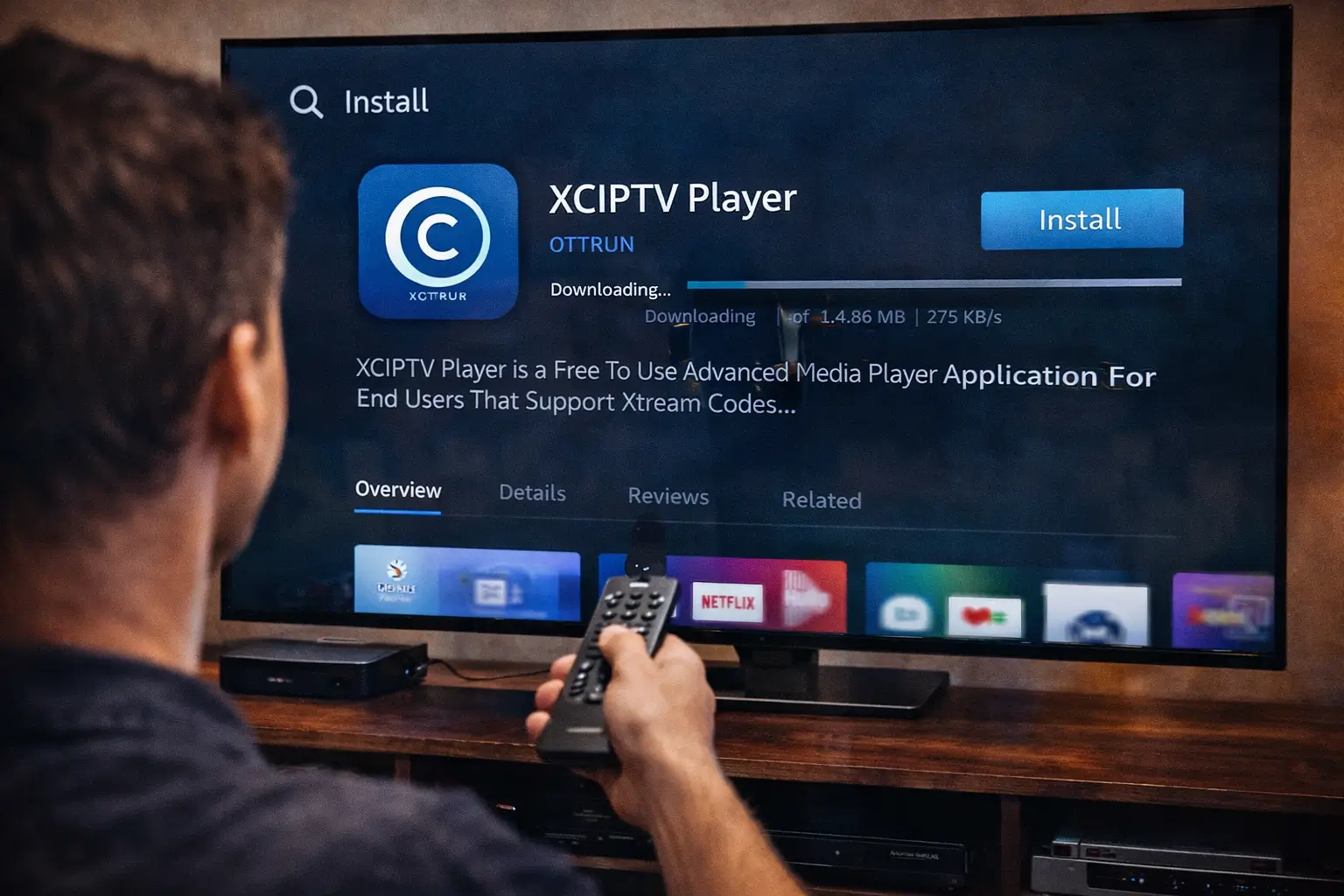
Use IPTV on XCIPTV Player by setting it up the right way from the start. Install XCIPTV, allow only needed network and storage permissions, and set your device time to Automatic.
Open the app, tap Add User, then choose Xtream Codes API (enter portal URL, username, and password) or M3U (paste your full playlist link). Add your EPG link, refresh it, and fix the time offset if the guide is not aligned. If it doesn’t work, remove extra spaces, clear the app cache, switch between Wi-Fi and Ethernet, turn off VPN, or change the video decoder.
1. Install XCIPTV Player
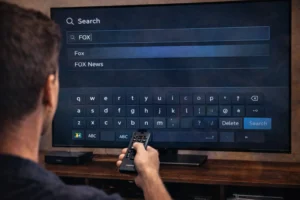
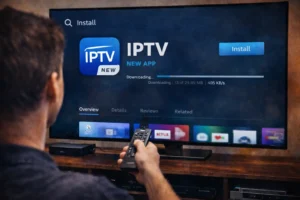
Go to your device’s app store or app installer and search for XCIPTV Player.
Download and install it like any other app.
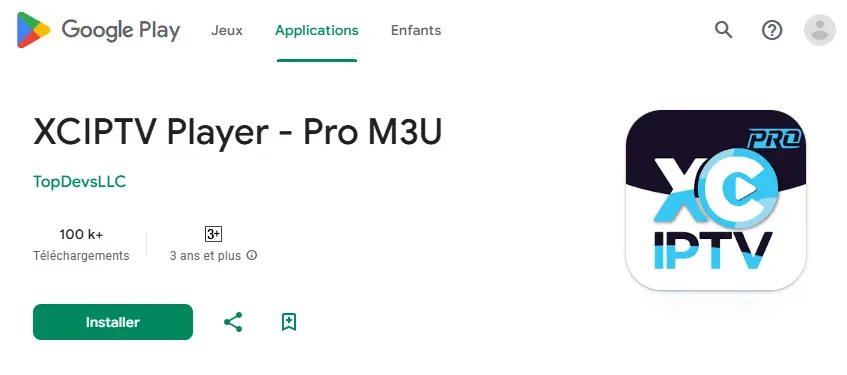
Once installed, open it so it can create its basic folders and settings.
Make sure your internet connection is stable before moving to the next step.
2. Open the Login Screen
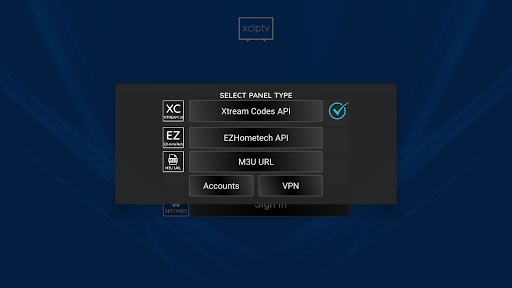
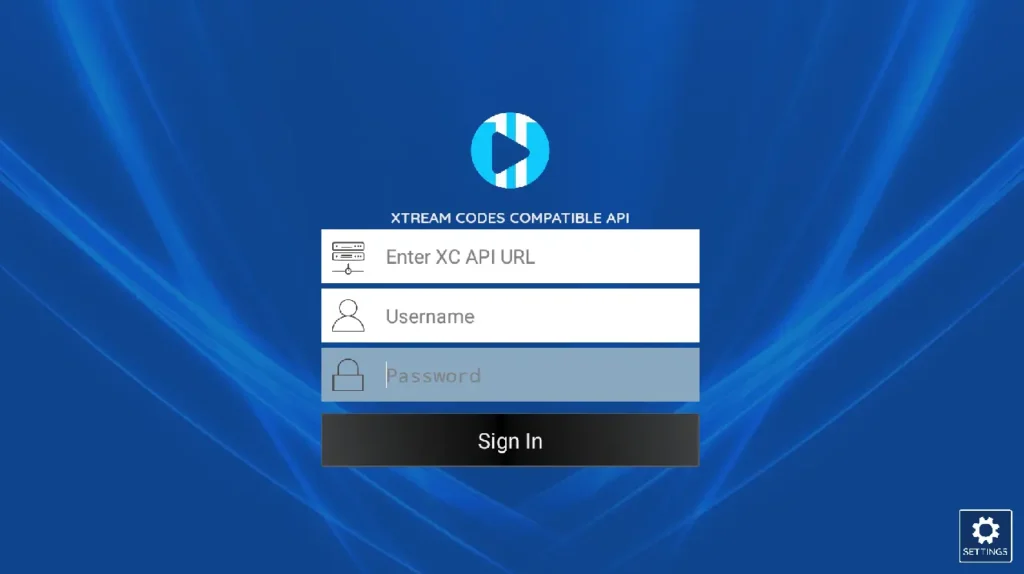
When you launch XCIPTV for the first time, it will show a login page. You’ll usually see two main options:
Login with Xtream Codes (username, password, server URL).
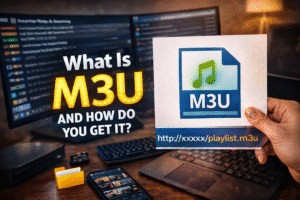
Login with M3U playlist link.
Choose the option that matches the details your IPTV provider gave you.
3. Enter Your IPTV Details
Carefully type in your IPTV subscription information.
For Xtream Codes : Enter the server URL, username, and password.
For M3U : Paste the full M3U link.
Check spelling, dots, and slashes, because one small mistake can stop it from working.
4. Let the App Load Channels and Guide
After you confirm, XCIPTV will start syncing your content. It will download your channel list, movies, series, and EPG (TV guide).
This may take from a few seconds to a couple of minutes, depending on your internet speed and playlist size. Don’t close the app while it’s loading.
5. Customize and Start Watching
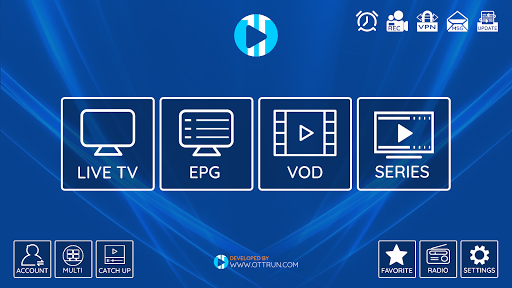
Once everything loads, go into Live TV, Movies, or Series. You can sort channels, mark favorites, and check the program guide.
Test a few channels to be sure everything works smoothly, then enjoy watching through XCIPTV Player.
Frequently Asked Questions
Can I Use XCIPTV Player on iOS Devices?
No, XCIPTV Player is not available on iOS because of system restrictions. If you use an iPhone or iPad, you’ll need to choose another IPTV player from the App Store. Just install an alternative, add your playlist or login details, check your internet connection, and restart the app if needed.
Does XCIPTV Player Support Chromecast or External Players Like VLC?
Yes, on many Android and TV devices, XCIPTV supports Chromecast. You can also use an external player like VLC for IPTV if the option is available. Go to Settings > Player, enable “Use external player,” and select VLC. If casting doesn’t work, update the app and make sure your casting service is active.
How Do I Add Multiple IPTV Profiles and Switch Between Them?
Go to Settings, then Profiles, and choose Add. You can create several profiles using different M3U links or logins. Give each profile a clear name to avoid confusion. To switch, return to the Profiles menu and select the one you want. If a profile fails to load, recheck the link or login details.
Is XCIPTV Player Legal to Use, and What Content Is Allowed?
XCIPTV Player itself is legal because it is only a media player. However, you are responsible for the content you add. Always use licensed and legal IPTV services. Avoid pirated or unverified playlists, as they can cause legal and security problems.
How Can I Secure XCIPTV Player With a PIN or Parental Controls?
Open Settings, then go to Security or Parental Controls. Enable PIN protection and choose a strong PIN. You can also block certain categories or age ratings. If these options are missing, update the app or check your device’s system-level parental controls.