To download IPTV Stream Player on Firestick, you need to enable developer options in the Fire TV settings, install the Downloader app from the Amazon App Store, get the official IPTV Stream Player APK URL, sideload the app via Downloader, complete the initial setup, configure your IPTV credentials, and finally test the streaming.
Since IPTV Stream Player is not natively available on the Amazon Appstore, the only safe way to install it on Firestick is through the official sideloading process, which is straightforward and takes about 10 minutes. This method works on all Firestick generations including Fire TV Stick 4K, Fire TV Stick 4K Max, and the latest Fire TV Cube.
For users looking for a reliable, high-quality streaming experience with IPTV Stream Player on Firestick, a verified IPTV Subscription is essential to ensure stable servers, full HD or 4K content, and 24/7 technical support throughout the setup.
In this guide, you’ll learn the 7 exact steps to download IPTV Stream Player on Firestick, configure it with your credentials, and optimize the app for the best possible viewing experience.
Step 1 : Install the Downloader app from the Amazon App Store
Downloader is the most popular and reliable sideloading tool for Firestick. It’s officially available on the Amazon Appstore and is required to fetch and install the IPTV Stream Player APK.
1- Go to the Firestick Home screen.
2- Click on the search icon (magnifying glass at top left).
3- Type “Downloader” using the on-screen keyboard.
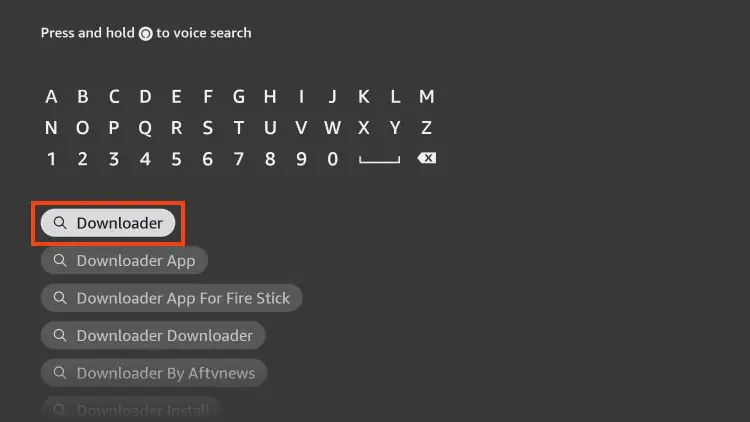
4- Select the orange Downloader app developed by AFTVnews.
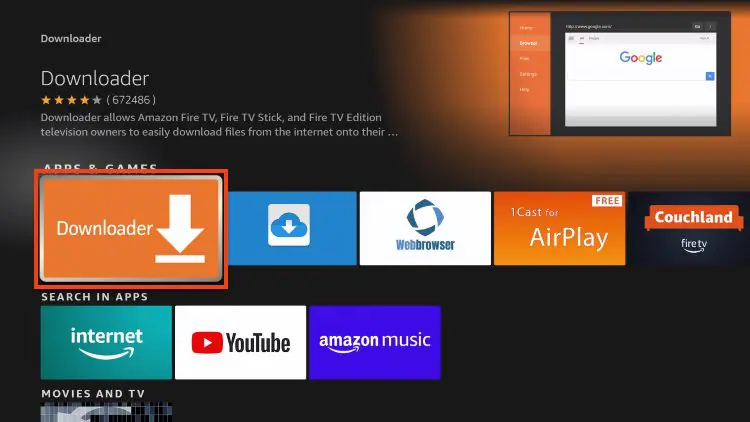
5- Click “Get” or “Download” to install the app.
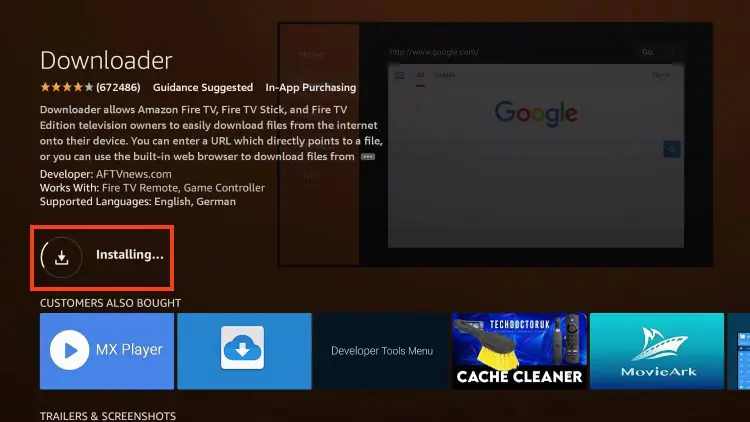
6- Wait for the installation to complete (30 to 60 seconds).
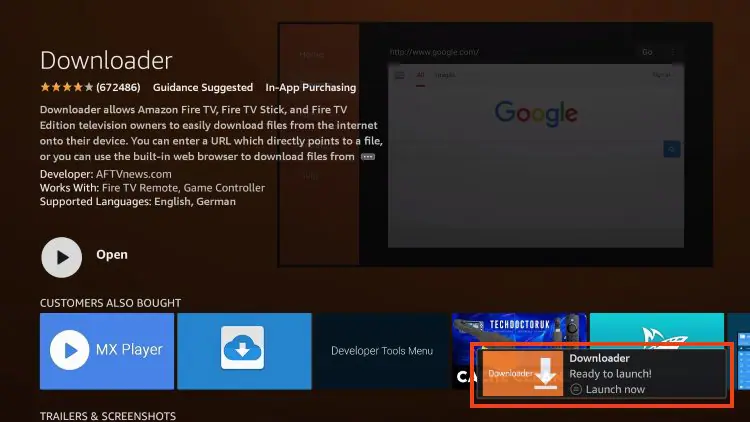
7- Open Downloader and allow it to access files when prompted.
Once installed, Downloader will become your default sideloading tool for any future IPTV app you want to test on Firestick. Keep it on your home screen for quick access.
Step 2: Prepare your Firestick by enabling developer options
The first step is to enable developer options on your Firestick to allow installation of apps from outside the official Amazon Appstore. This setting is required because IPTV Stream Player is sideloaded via APK.
1- Power on your Firestick and reach the Home screen
2- Go to Settings (gear icon at the top right)
3- Select “My Fire TV” or “Device & Software“
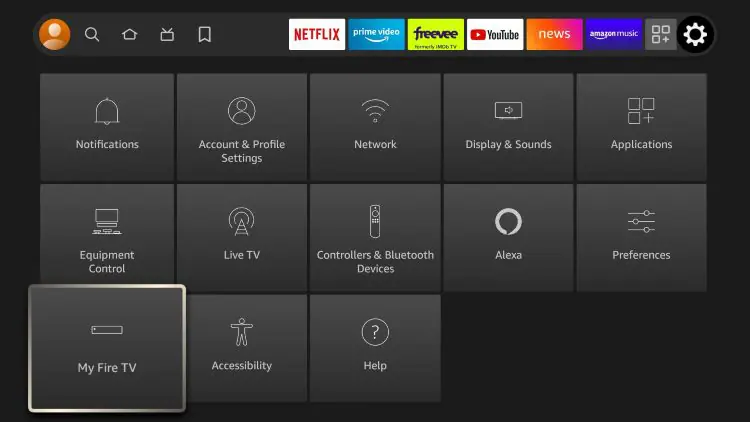
4- Click About.
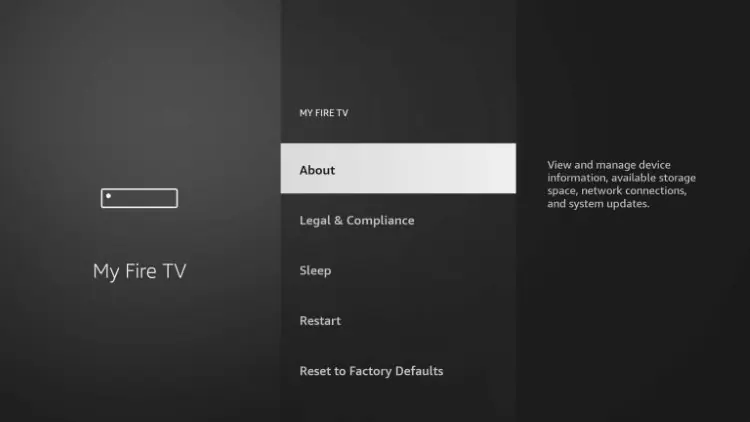
5- Click on Fire TV Stick (Or you device) and click 7 times to become a developer.
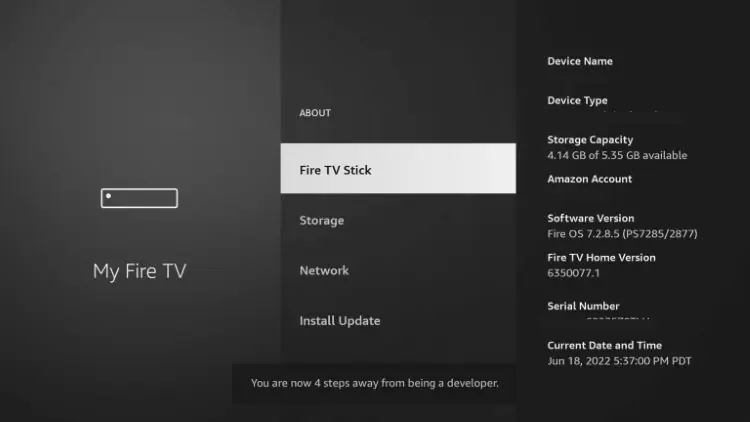
6- Click the Back button on and you will see that Developer Options are now available.
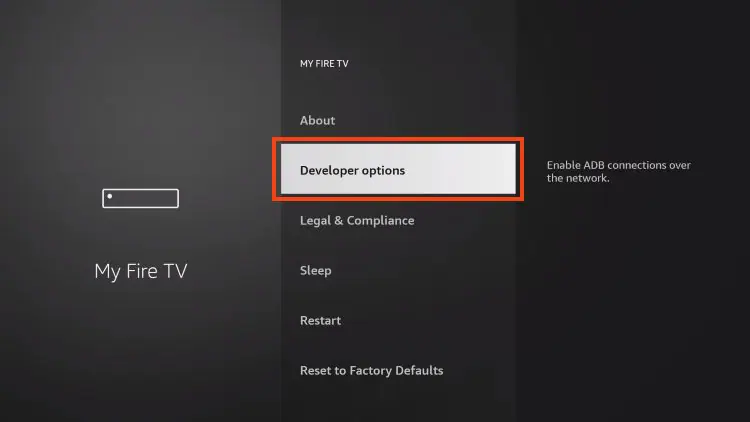
7- Choose the “Install unknown apps“.
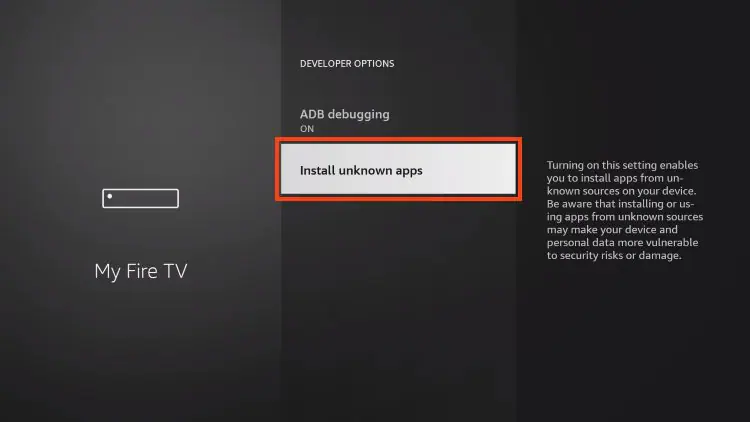
8 – Look for the Downloader app and click on it.
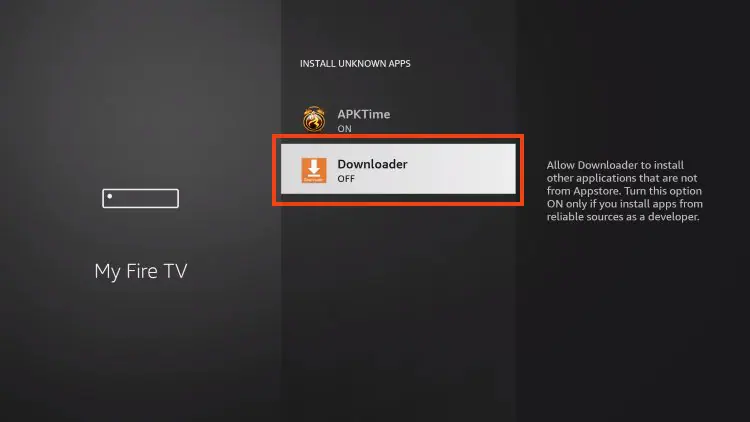
This setting stays active until you manually disable it. You can turn it off after installation for added security, but most users keep it active to install future updates without going through the menu again.
Step 3: Get the official IPTV Stream Player APK URL
To install IPTV Stream Player safely on Firestick, you must use the official APK URL provided either by your IPTV provider or by the official IPTV Stream Player developer. Avoid random APK download sites, which often contain malware.
1- Contact your IPTV provider for the verified APK link.
2- Check the developer’s official website for the latest version.
3- Verify the URL starts with https:// for security.
4- Save the exact URL in your notes for the next step.
5- Avoid APK files shared on forums or Telegram groups.
6- Never download APKs from third-party app stores.
7- Confirm the file size matches what the developer announces.
According to CNET, sideloading should always be done from verified sources to minimize the risk of malware, especially on streaming devices like Firestick that connect to home networks containing sensitive personal data.
Step 4: Download IPTV Stream Player using the Downloader app
With the URL ready and Downloader installed, you can now download the IPTV Stream Player APK file directly to your Firestick. This step typically takes less than a minute on a decent Wi-Fi connection.
1- Download the latest version of IPTV Stream Player, from a trusted source like APKPure.
2- Open the Downloader app on your Firestick.
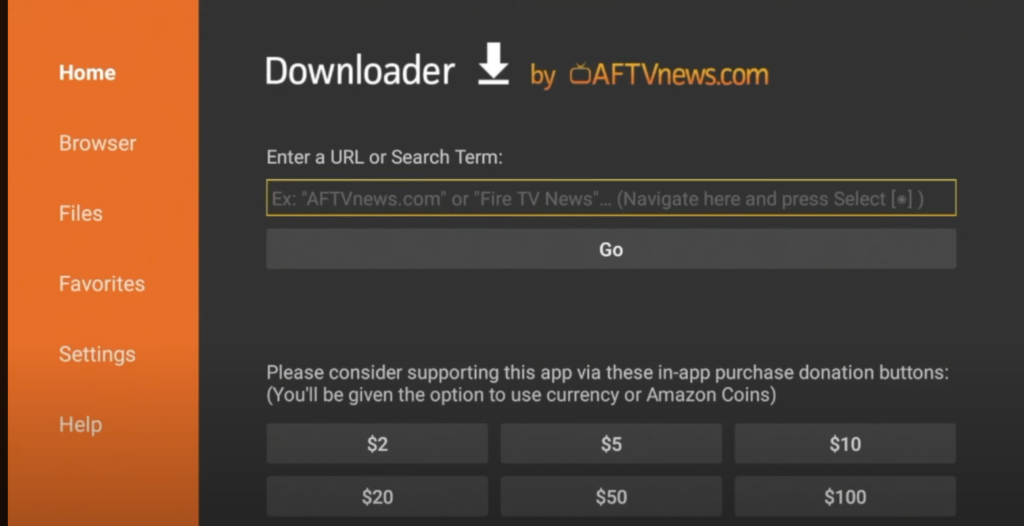
3- Enter the URL in search bare on Dowloader.
4- Click “Go” to start the download.
5- Wait for the APK to fully download (file size ~20–50 MB).
6- Tap “Install” when the installation prompt appears.
If the download fails, verify the URL one more time, check your internet connection, and try again. A working download leads directly to the installation wizard provided by Firestick.
Step 5: Open IPTV Stream Player and complete initial setup
After successful installation, IPTV Stream Player appears in your Firestick app library. Opening it for the first time launches a brief setup wizard to configure language and preferences.
1 – Return to the Firestick Home screen.
2- Navigate to your apps section (right side menu).
3- Locate IPTV Stream Player among your installed apps.
4- Open the app to launch the first-time setup.
5- Accept the terms of use and privacy policy.
6- Allow network and storage permissions when prompted.
7- Choose your preferred language (English recommended).
For deeper details on the general configuration of IPTV Stream Player across all platforms (not just Firestick), refer to our complete guide on how to install IPTV on IPTV Stream Player which covers advanced settings useful for all devices.
Step 6: Configure IPTV Stream Player with your IPTV credentials
This is the central step of the process: connecting IPTV Stream Player to your IPTV service by entering the credentials provided by your subscription. Three connection formats are usually supported.
1- Tap “Add Playlist” or “Add User” in the main menu.
2- Choose the connection format (M3U URL or Xtream Codes API).
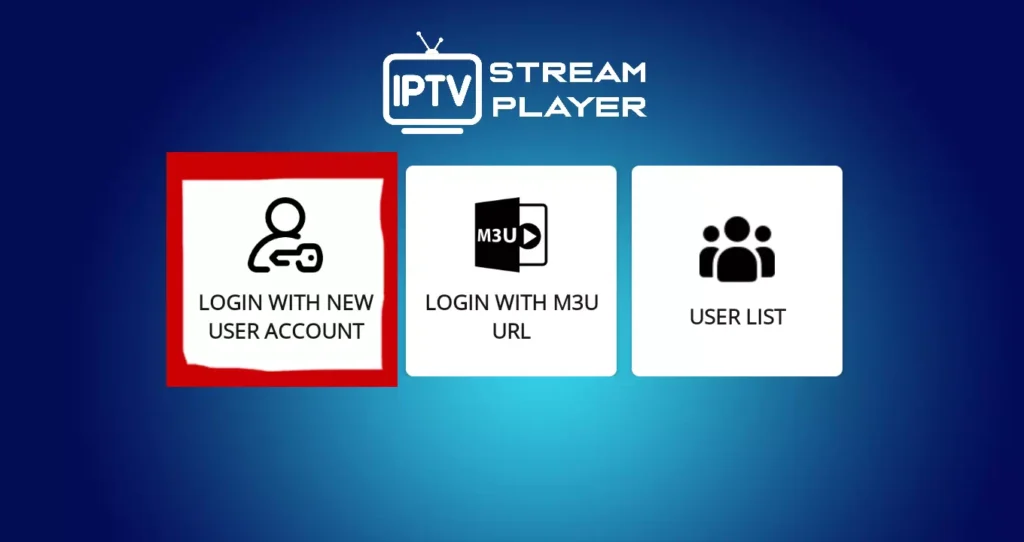
3- Enter a profile name like “My IPTV Account“.
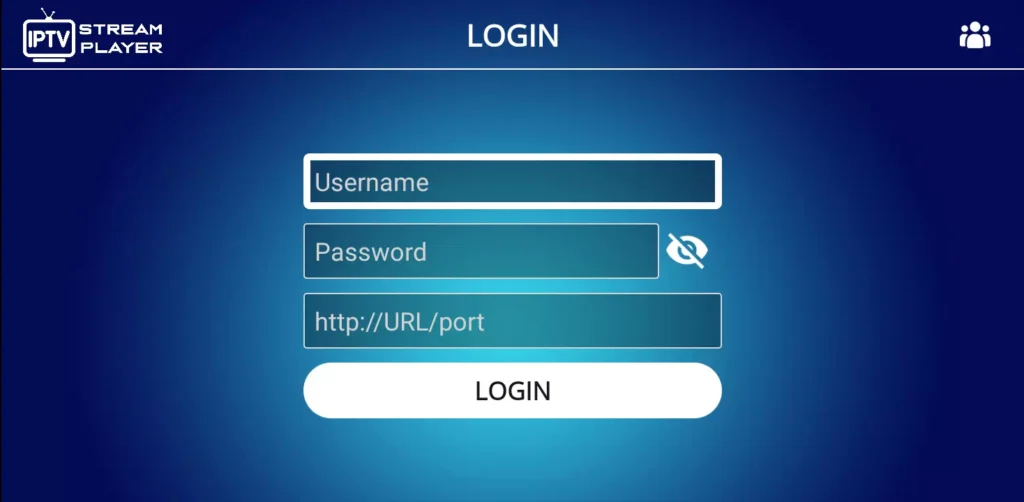
4- Paste the server URL provided in your activation email.
5- Type your username exactly as received (case-sensitive).
6- Type your password without extra spaces or characters.
7- Save the configuration to start loading channels.
The app will then automatically load your full channel list, VOD catalog, and EPG (Electronic Program Guide). Loading time varies between 10 seconds and 2 minutes depending on the catalog size and connection speed.
Step 7: Test the installation and optimize the experience
Once configured, IPTV Stream Player is ready to use. A final test confirms that the streaming, audio, and program guide work correctly across different channel categories and resolutions.
1- Open the live TV section to load a first channel
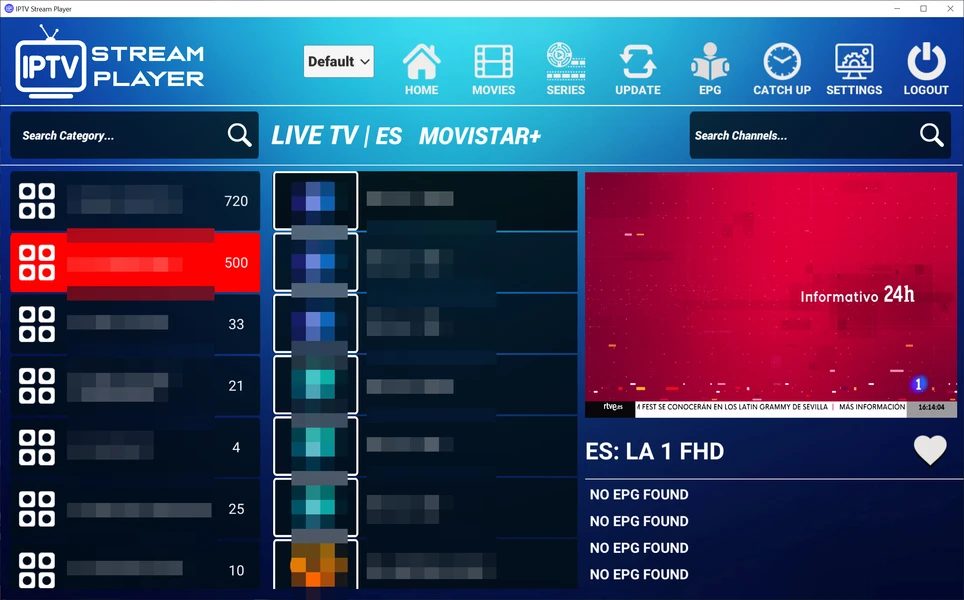
2 -Test SD, HD, and 4K channels to verify quality.
3- Verify the audio is synchronized with the video.
4- Browse the VOD library to confirm full catalog access.
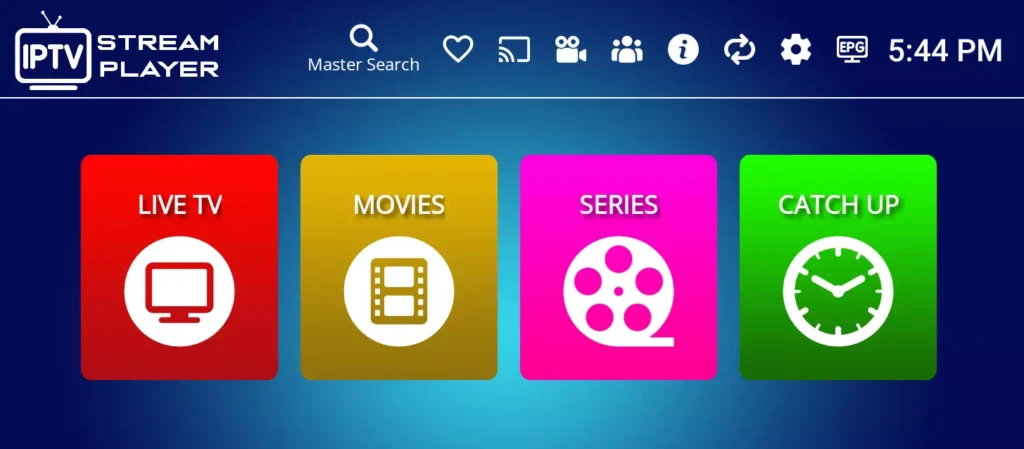
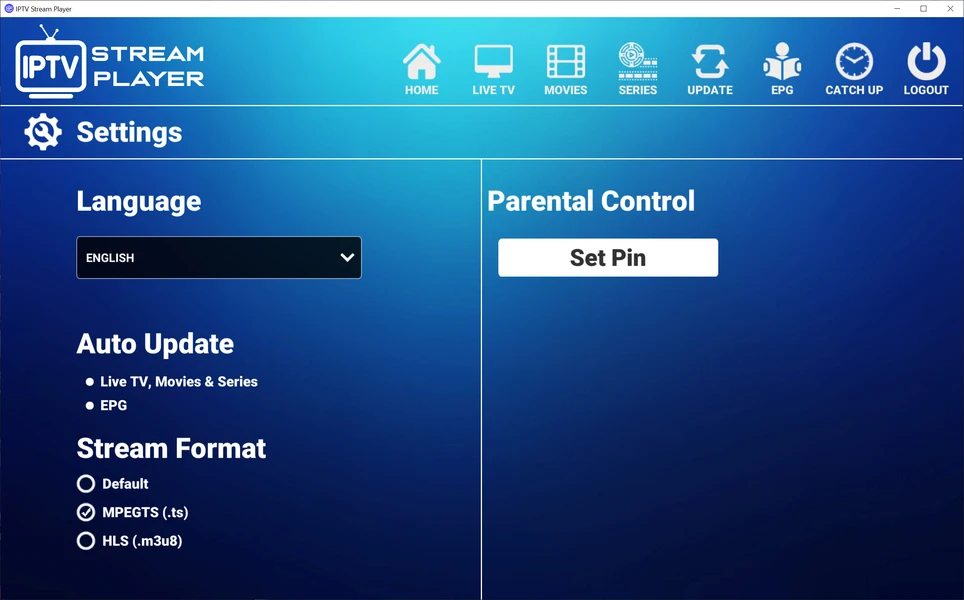
5- From Setting, activate the EPG in the settings for program info.
6- Add favorite channels to a personalized list.
7- Adjust buffer settings and hardware acceleration if needed.
If you experience freezing or buffering, restart the app, clear the cache from the settings menu, or contact your IPTV provider’s 24/7 support team for fast troubleshooting and personalized assistance.
Comparison Table: Firestick Models and IPTV Stream Player Performance
Here is a complete comparison of the different Firestick models and their compatibility with IPTV Stream Player for HD and 4K streaming.
| Firestick Model | RAM | Max Resolution | IPTV Stream Player Performance | Best For |
| Fire TV Stick (3rd gen) | 1 GB | Full HD 1080p | Smooth in HD | Basic users, secondary TV |
| Fire TV Stick Lite | 1 GB | Full HD 1080p | Smooth in HD | Entry-level setup |
| Fire TV Stick 4K | 1.5 GB | 4K UHD HDR | Excellent in 4K | Most users (best value) |
| Fire TV Stick 4K Max | 2 GB | 4K UHD HDR + Wi-Fi 6 | Premium 4K | Heavy streamers |
| Fire TV Cube (2nd/3rd gen) | 2 GB | 4K UHD HDR | Top-tier performance | Home cinema setups |
Conclusion
Downloading IPTV Stream Player on Firestick is a straightforward process that takes less than 10 minutes when you follow the 7 essential steps: enable developer options, install Downloader, get the official APK URL, sideload the app, complete the initial setup, configure your credentials, and test the installation.
With a properly installed IPTV Stream Player and a reliable IPTV subscription, you transform your Firestick into a powerful streaming hub with access to thousands of HD and 4K channels, full EPG support, and VOD libraries.
For the best experience, always use the official APK source, configure your settings according to your Firestick model, and choose a verified IPTV provider with dedicated 24/7 support and a satisfaction-guaranteed policy. Whether you own a Fire TV Stick Lite or a Fire TV Cube, IPTV Stream Player delivers professional-grade streaming once correctly configured following this guide.
FAQ — IPTV Stream Player on Firestick
Is IPTV Stream Player free to download on Firestick?
The app itself is generally free to install via sideload. You only pay for the IPTV subscription that provides the channels and content.
Is sideloading IPTV Stream Player on Firestick legal?
Sideloading is legal in the United States as long as you use legitimate APKs and a verified IPTV subscription with proper content licensing.
Why is IPTV Stream Player not available on the Amazon Appstore?
Amazon does not approve every third-party IPTV app due to its strict content policies. Sideloading is the safe workaround for trusted apps like IPTV Stream Player.
Can I install IPTV Stream Player on an older Firestick model?
Yes. IPTV Stream Player works on all Firestick generations, though older models may struggle with 4K streaming due to limited RAM and processing power.
Will IPTV Stream Player update automatically on Firestick?
No, sideloaded apps don’t update automatically. You need to download the latest APK manually whenever a new version is released.
Can I use IPTV Stream Player on Firestick without Wi-Fi?
No. IPTV Stream Player requires a permanent active internet connection. You can use Ethernet via an adapter for better stability than Wi-Fi.
How can I uninstall IPTV Stream Player from Firestick if needed?
Go to Settings → Applications → Manage Installed Applications → IPTV Stream Player → Uninstall. The process takes less than 30 seconds.