To install IPTV on Smart IPTV, install the app on your Samsung or LG TV, manually on Samsung, where it was removed from the store, open it and note the MAC address shown on screen, go to the official portal siptv.app/mylist from a computer or phone, enter that MAC address, upload your M3U link (and EPG guide) with the “Keep Online” box ticked, then restart the app on the TV: your channels appear. The full step-by-step follows below.
Smart IPTV, often shortened to SIPTV, is one of the most widely used IPTV players on Samsung and LG televisions. Its big advantage is that no extra hardware is needed, no box, no streaming stick, since the app runs natively on the TV. Its quirk, on the other hand, is that you do not set it up inside the app itself, but on a website, by linking the TV’s MAC address to your playlist.
The app holds no channels: it plays the source you provide. This guide walks through installation on Samsung and LG, uploading your playlist, activation, useful settings, and fixing common issues.
What you need before you start
Gather these first. On Smart IPTV, nearly every problem traces back to a mistyped MAC address or an invalid M3U link.
- A compatible Samsung (Tizen) or LG (webOS) television.
- An IPTV subscription full M3U link, plus the EPG guide URL if your source provides one separately.
- A computer or phone to reach the official siptv.app portal.
- A stable internet connection and a legitimate, authorized content source.
Install Smart IPTV on your TV
Important to know first: Smart IPTV was removed from the Samsung (Tizen) store and, in several regions, from the LG Content Store back in 2020.
Depending on your TV, installing straight from the store is no longer always possible, so you may need a manual install (sideload) or an alternative. There is a simple solution for each case, described below.
On Samsung (Tizen) — manual install
Since the app is no longer in Samsung Apps, you install it through its official host using a USB flash drive.
On a computer, open a browser and go to apk.siptv.app: the app file downloads.
Copy that file to a USB flash drive, then plug the drive into the TV.
On the TV, open the file from the drive to start the installation.
Open the app once installed.
On LG (webOS)
Press the Home button, then open the LG Content Store.
Search for “Smart IPTV“: if it appears for your model, select it and press “Install.”
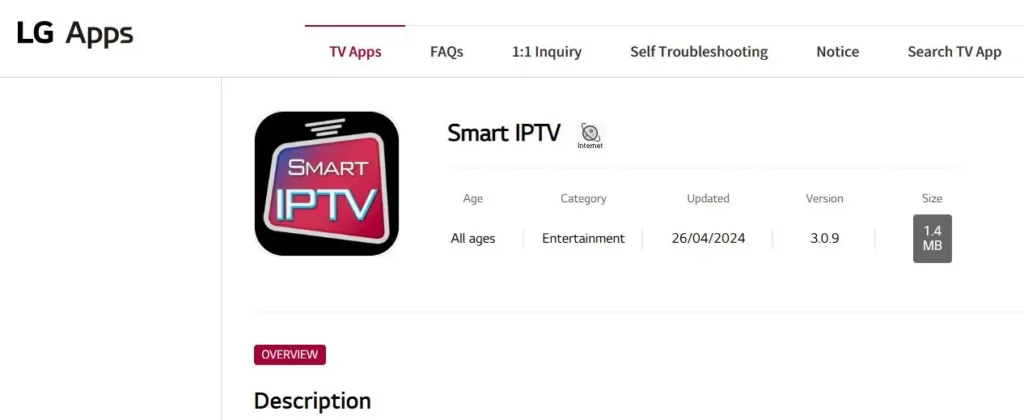
Open the app once installed.
If it is missing from your store, use an alternative (see below).
On Fire TV Stick (possible, but not ideal)
Smart IPTV is designed for the TV interface, and its own developer advises against the Firestick, where remote navigation is awkward. If you still want it, the route is sideloading via the Downloader tool.
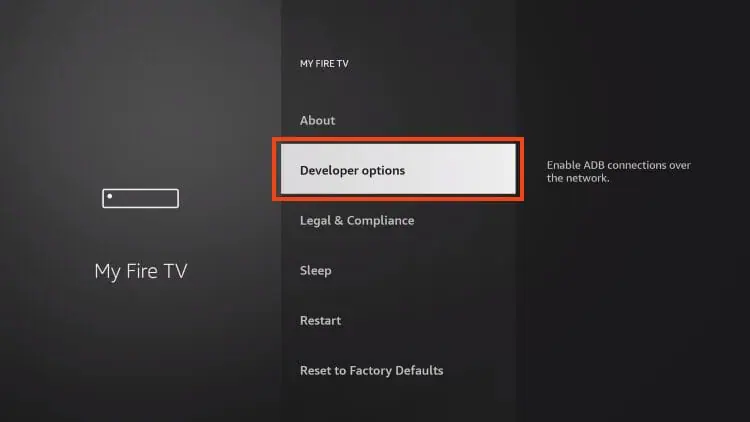
First allow third-party apps: Settings → My Fire TV
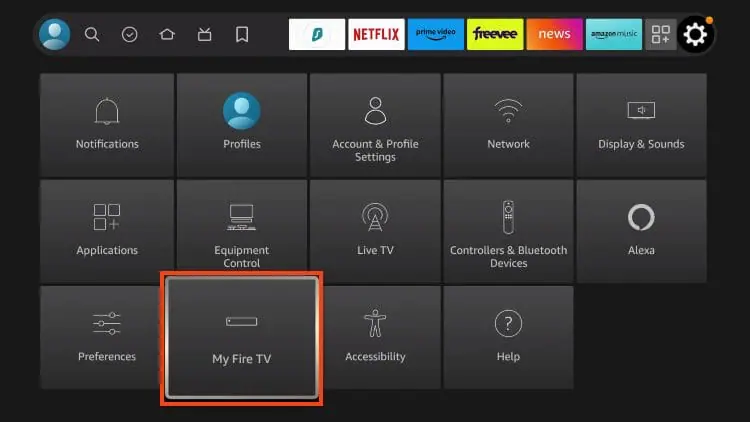
→ Developer Options
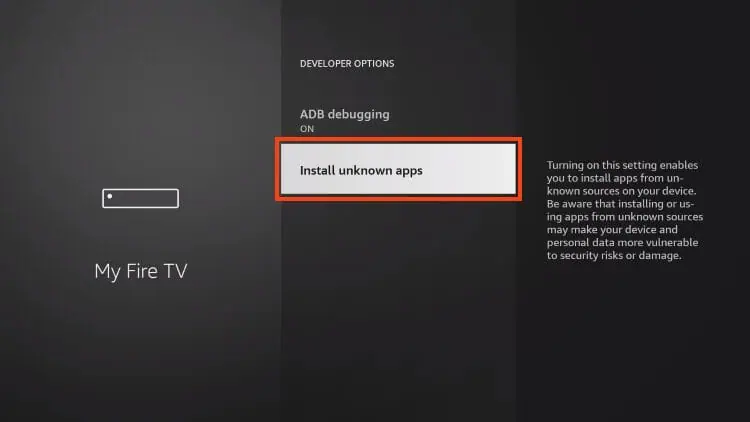
→ Install Unknown Apps.
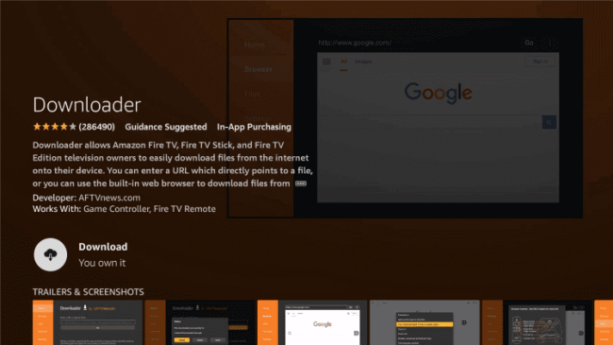
Install the Downloader app from the Firestick search, then enable its permission in that list.
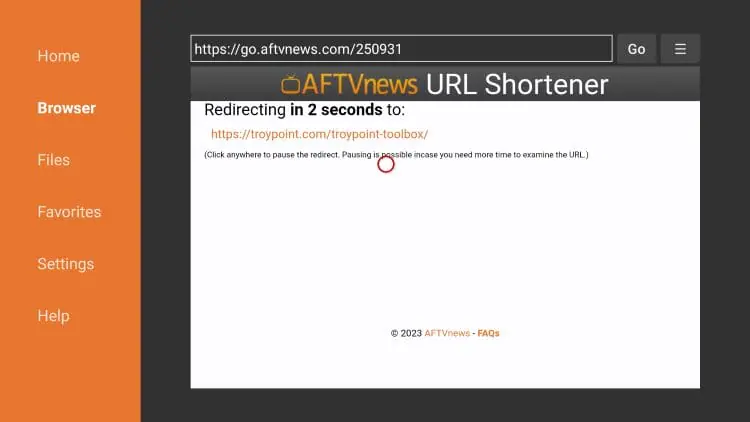
Open Downloader, go to the address field, enter apk.siptv.app, and press “Go.”
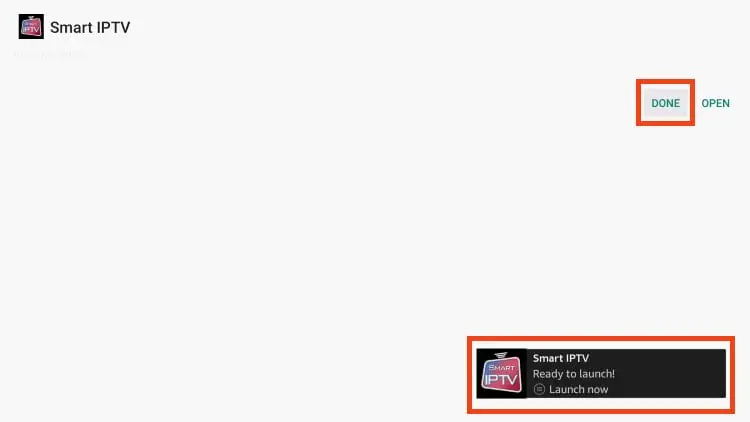
After the download, press “Install,”
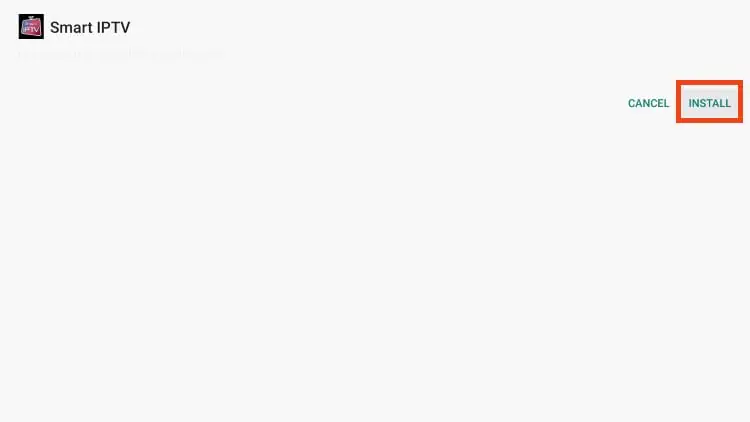
then “Open.”
On the Firestick and recent Android devices, the MAC address shown by the app can change on every restart, forcing you to re-link the playlist. For lasting use, a Samsung or LG TV, or an alternative like TiviMate, is more comfortable.
If you cannot install Smart IPTV on your model, equivalent apps work the same way (MAC address + online upload): IBO Player, Flix IPTV, or SS IPTV, the last of which is free and still available in the Samsung store.
Find your MAC address
On launch, Smart IPTV shows your TV’s MAC address, the unique identifier that will link your playlist to the device. It is the single most important piece of the process.
Open Smart IPTV on the TV.
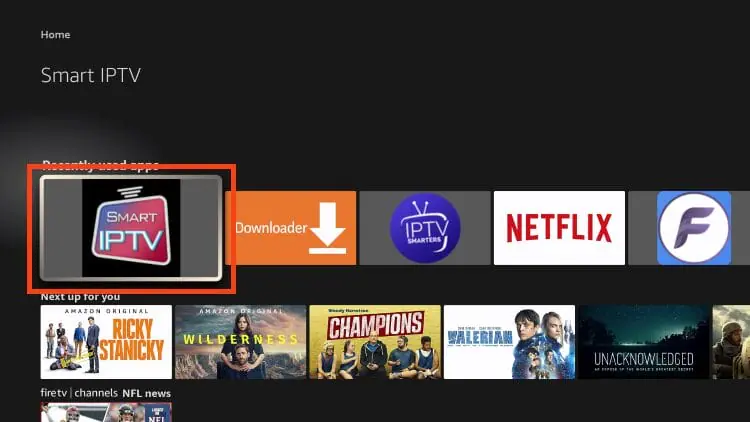
If the following message appears, click “Allow.”
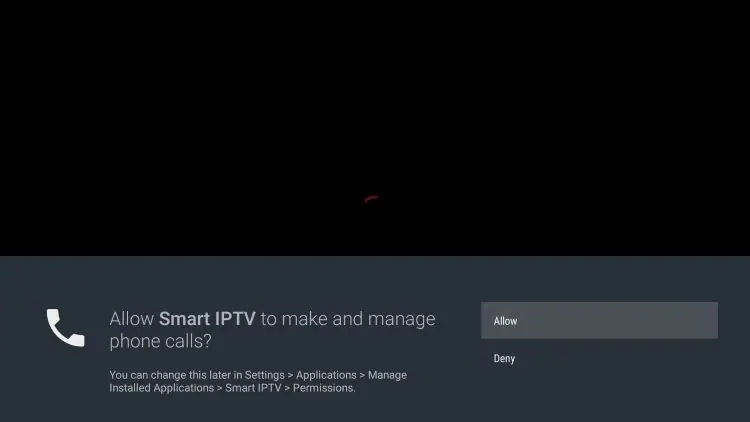
Find the MAC address shown on the start screen (format XX:XX:XX:XX:XX:XX).
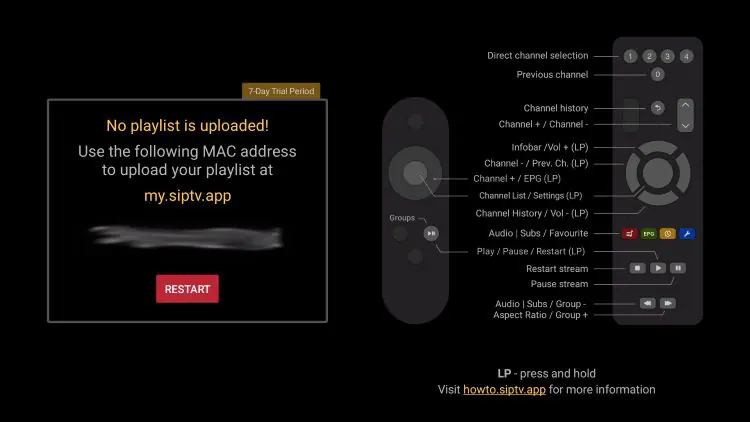
Note it down exactly, character by character.
Leave that screen open, or remember where to find the MAC address in the app’s menu.
Upload your playlist on siptv.app
Adding the source happens not on the TV but on the official Smart IPTV portal, where you link your MAC address to your playlist. Do it from a computer or phone, it is far easier than using the remote.
Open a browser and go to the official portal siptv.app/mylist.
Enter the MAC address from the TV, exactly.
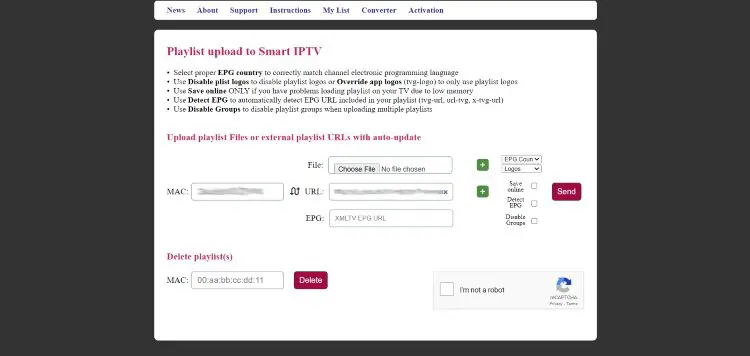
In the URL field, paste your M3U link (or upload your M3U file).
Add the EPG URL in the field provided if your source offers one separately.
Tick the “Keep Online” box before sending, without it, your playlist expires after 4 days and must be re-uploaded.
Give the playlist a name, then press “Send.”
Mistake #1 is a MAC address that does not exactly match the one in the app. #2 is an invalid M3U link: to check it, open it in a browser, it should return a list, not an error. #3 is forgetting “Keep Online,” which makes the channels “disappear” after a few days.
Reload the app and load your channels
Go back to the TV and restart Smart IPTV so it picks up the freshly linked playlist. In a moment, your channels appear, sorted into groups.
Close and reopen the Smart IPTV app on the TV.
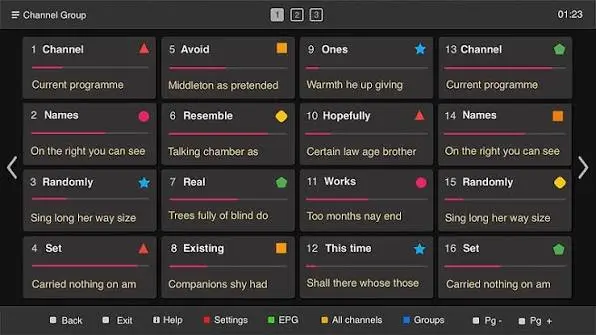
Wait while the channels and guide load.
Browse the groups to confirm everything shows up.
If nothing appears, recheck the MAC address and M3U link, then reload.
Activation: free trial, then a one-time fee
Worth knowing before you commit: Smart IPTV offers a 7-day free trial from first install. After that, a one-time activation of about €5.49 per TV is required to keep using the app, with no recurring fee afterward.
This activation is permanent for that specific TV (it is tied to its MAC address). It covers the app only, it gives you no channels, since you still need a legitimate content source.
How to change subtitles and audio
Smart IPTV is a lightweight TV app, so its playback controls are simpler than those of dedicated Android players, but you can still switch subtitles and audio when a stream provides them.
- Start a channel or a movie.
- Press the button on your TV remote that opens the playback or “Tools” menu during playback.
- Look for the subtitle option and choose a track, or turn subtitles off.
- Use the audio option to switch language if the program carries more than one track.
Because Smart IPTV relies on the TV’s own player, the available options depend both on your television and on the stream. If no subtitle or audio choice appears, the stream simply does not carry those tracks — no setting can add them.
How to change the video quality
Smart IPTV has no in-app resolution selector, so image quality is governed mainly by your source and your connection. There are still a few practical levers.
- If your source lists the same channel in several qualities (for example FHD, HD, and SD), select the lower-quality version to stop buffering, or the higher one for a sharper picture.
- On LG (webOS), if channels stutter or will not play, open the app’s settings and change the “Stream Player Type”, this often fixes both playback and quality issues.
- Make sure your connection can handle the stream: wired Ethernet or a strong 5 GHz Wi-Fi signal is best for HD and 4K.
- Restart the app after changing your playlist so the new streams load correctly.
As always, the final quality is capped by what your source broadcasts. Smart IPTV can play a lower-quality stream to keep things smooth, but it cannot add detail the source does not provide.
Troubleshooting common issues
- Channels do not appear: the MAC address on siptv.app does not exactly match the one in the app, or the M3U link is invalid. Recheck both.
- Channels disappear after a few days: “Keep Online” was not ticked at upload. Re-upload with that box checked.
- Playback stutters on LG: change the “Stream Player Type” in the settings.
- The guide is empty: make sure your playlist includes the EPG, or add the EPG URL on the siptv.app portal.
- The app is missing from the store: install it via USB on Samsung (from apk.siptv.app), or use an alternative like SS IPTV or IBO Player.
Is it safe, and why can’t I find it in the store?
The app is a legitimate, content-free player. Two points deserve a straight answer. First, availability: Smart IPTV was pulled from the Samsung (Tizen) store in 2020, and from the LG Content Store in several regions, which is why so many users no longer find it by searching.
On Samsung, installation now goes through a file from the official host apk.siptv.app; where nothing works, alternatives like SS IPTV, IBO Player, or Flix IPTV step in.
This removal is not isolated: it fits a broader pattern of IPTV blocking, in which TV makers, app stores, and sometimes internet providers tighten their stance, even pulling apps that, like Smart IPTV, contain no content at all.
Occasionally, despite a correct install, your IPTV service stays blocked; when that happens, the problem is rarely the app and almost always the source. On security, the only real rule is to use the official siptv.app portal to upload your playlist, never a lookalike site. The legality of your use, as always, depends on the source you connect to.
FAQ
Is Smart IPTV free?
It offers a 7-day free trial, then asks for a one-time activation of about €5.49 per TV, with no recurring fee. You still need a separate content source.
Which TVs does it run on?
Mainly Samsung (Tizen) and LG (webOS) smart TVs. The app provides no channels; it plays your M3U playlist.
Why do I have to use a website?
Because Smart IPTV works by MAC address: you link the TV to the playlist on siptv.app rather than entering the source in the app.
Can I use Xtream Codes credentials?
Smart IPTV is set up by M3U link. If you have an Xtream account, use its matching M3U URL (the get.php link) as the playlist to upload.
What if I can’t find the app in my TV’s store?
On Samsung, install it manually from apk.siptv.app via a USB drive. Otherwise, use a smart-TV alternative like SS IPTV, IBO Player, or Flix IPTV.
Do I need to re-activate if I change my playlist?
No. Activation is tied to the TV’s MAC address and stays permanent; you can update your playlist on siptv.app without paying again.
Why do my channels disappear after a few days?
Because “Keep Online” was not ticked at upload. Without it, the playlist expires every 4 days. Re-upload it with that box checked.
How do I change subtitles or audio on Smart IPTV?
During playback, open your TV remote’s playback or “Tools” menu and choose a subtitle track or audio language. The options appear only if the stream carries them, since Smart IPTV uses the TV’s own player.
Can I change the video quality?
There is no in-app resolution selector. Pick a lower-quality version of the channel if your source offers one, and on LG try changing the “Stream Player Type.” A good connection matters most.
Conclusion
Smart IPTV remains one of the simplest ways to watch IPTV directly on a Samsung or LG television, with no box at all: install the app, note the MAC address, upload your playlist on siptv.app with “Keep Online” ticked, and restart.
Two things to keep in mind before choosing it: the app asks for a small one-time activation after the 7-day trial, and it has disappeared from the store in several regions, where installation goes through a USB drive or an alternative.
If your TV is a Samsung or LG and you want a native, lasting solution, it does the job well. As always, the app is only a tool: the quality and legitimacy of your viewing depend on the source you connect to and the stability of your connection.