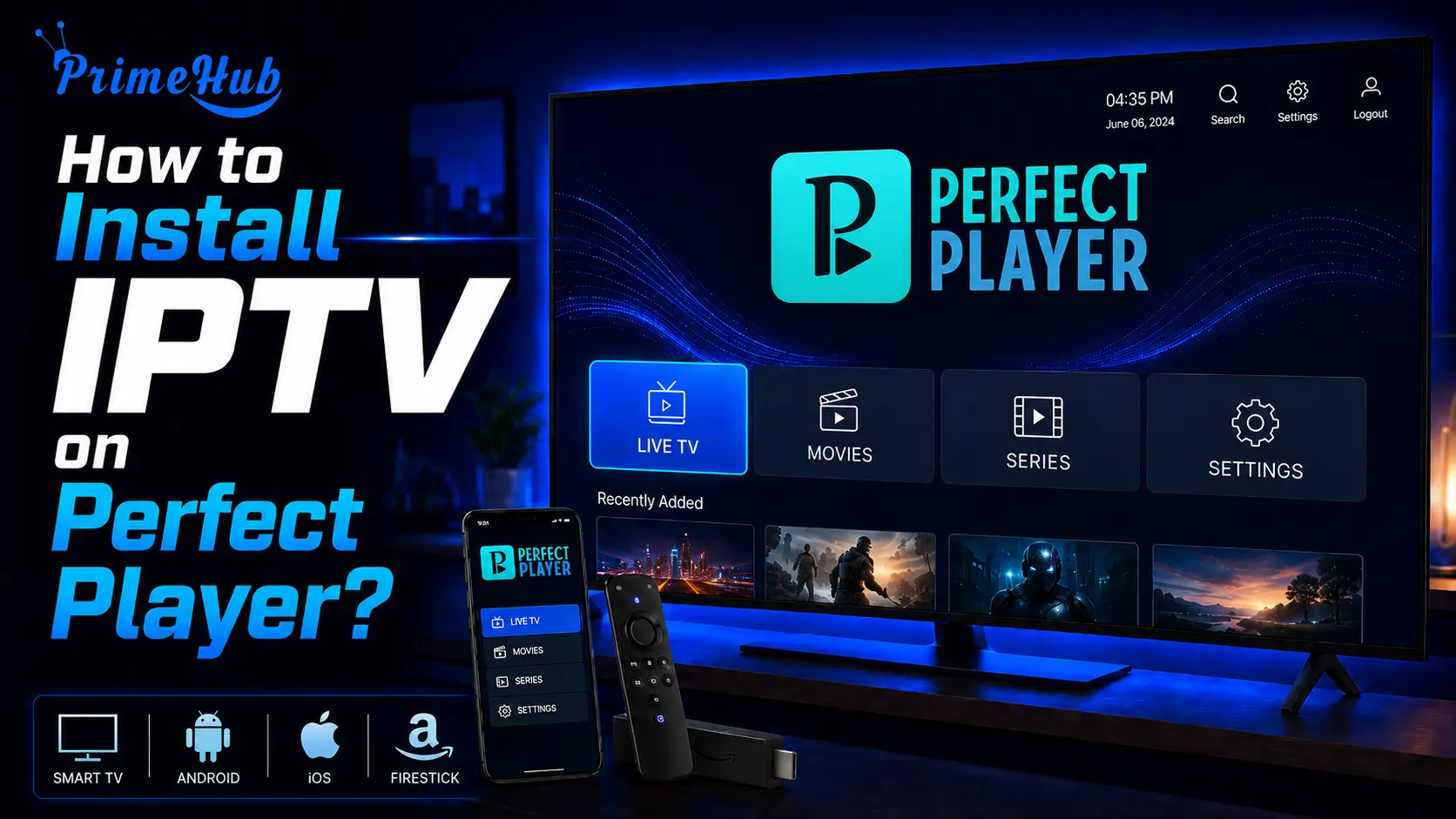
To install IPTV on Perfect Player, install the app (via an APK file on Android and Android TV, or the official PC version on Windows), open it, reveal the on-screen menu, go into Settings, paste your M3U playlist URL under “Playlist 1,” add your XMLTV guide URL under EPG, and save, your channels then load. It takes only a few minutes. The full walkthrough, step by step, follows below.
Perfect Player is a lightweight, highly customizable IPTV player with a classic set-top-box style, long valued for its support of M3U playlists and XMLTV guides. Two things set it apart from newer players, and it is worth knowing them before you start: it was removed from the Google Play Store, so it now installs mainly through an APK file, and it is no longer actively updated.
Like any player, it provides no channels of its own, it simply plays a source you give it, such as an IPTV subscription. This guide covers installation on each device, how to connect your source and guide, the settings that matter, and an honest look at whether it is still worth using.
What you need before you start
Gather these before installing. Most failed setups come down to a missing detail here, not the app itself.
- A compatible device: an Android phone or tablet, an Android TV box or Fire TV, or a Windows PC.
- Your M3U link (or the M3U URL of your Xtream Codes account) and, if available, your XMLTV guide URL.
- A download tool if you are sideloading on Android TV or Fire TV.
- A stable internet connection and a legitimate, authorized content source.
Install Perfect Player on Android or Android TV
Because the app is no longer on the Google Play Store, the main route on Android is an official APK file.
Open your device application settings.
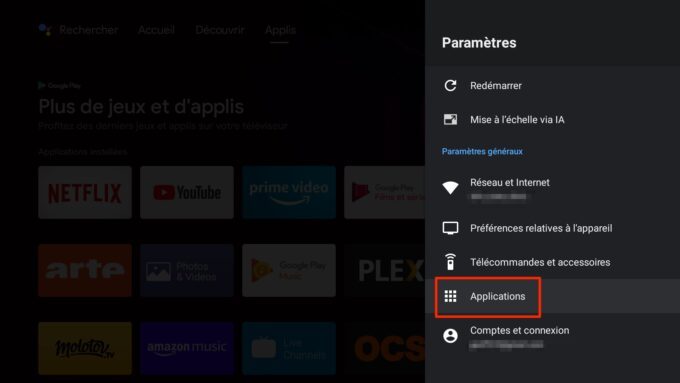
Click on security.
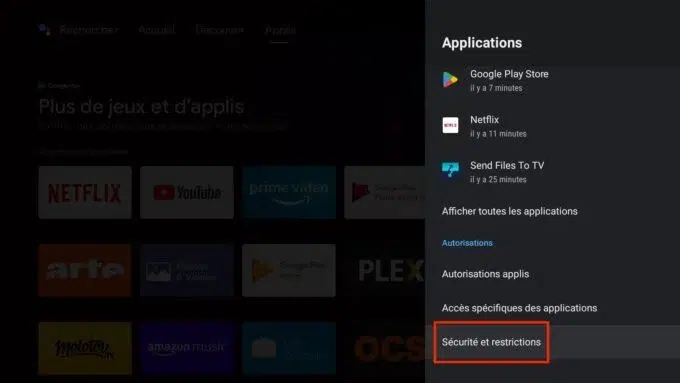
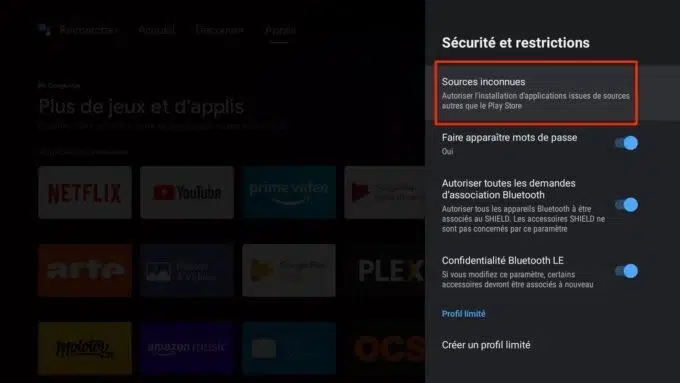
And allow installation from unknown sources for the browser or tool you will use.
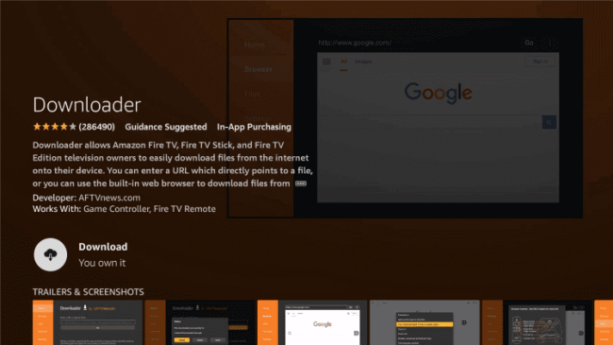
Install a download tool from your device’s store, such us Downloader.
Open it, enter the official APK address for Perfect Player, and start the download.
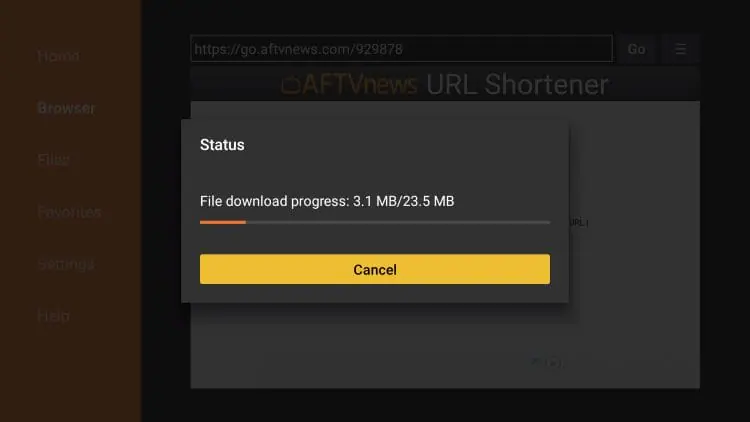
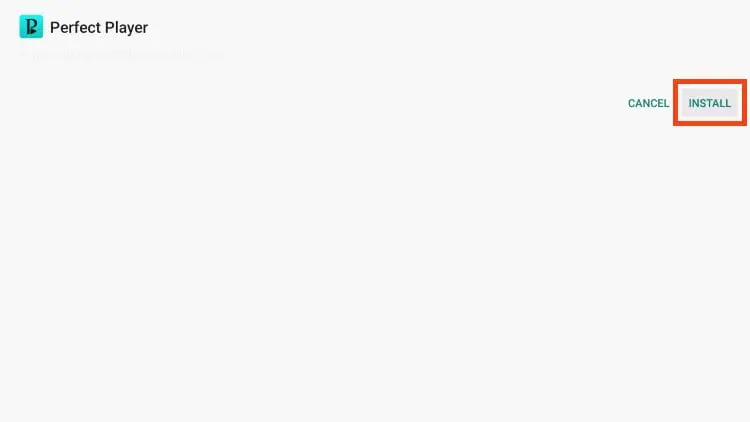
Once downloaded, select “Install”
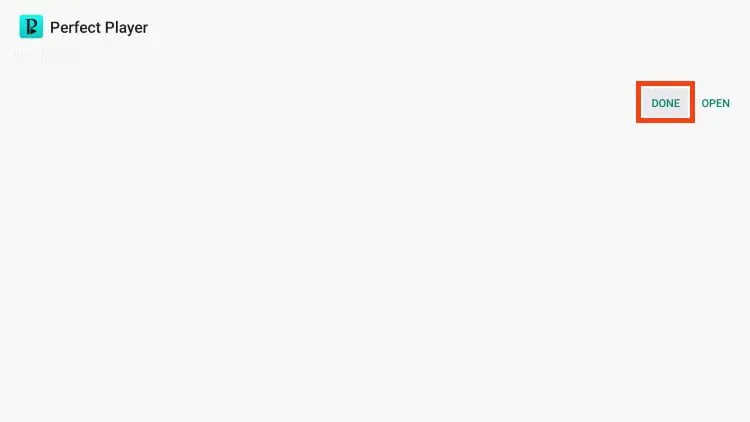
Then “Open.”
Install Perfect Player on Fire TV
The process mirrors Android TV, using the Downloader tool.
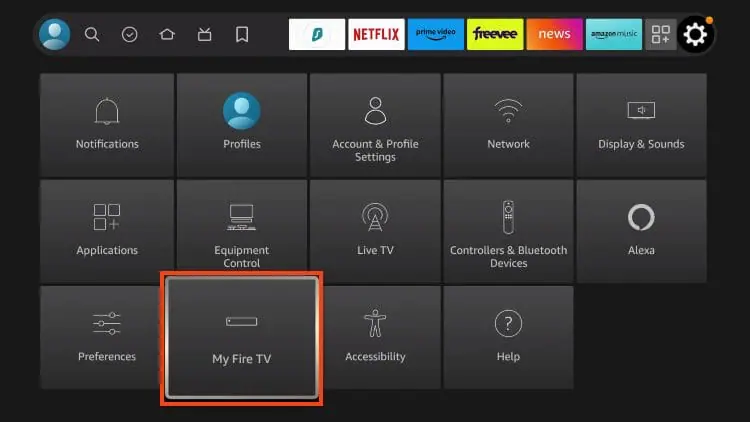
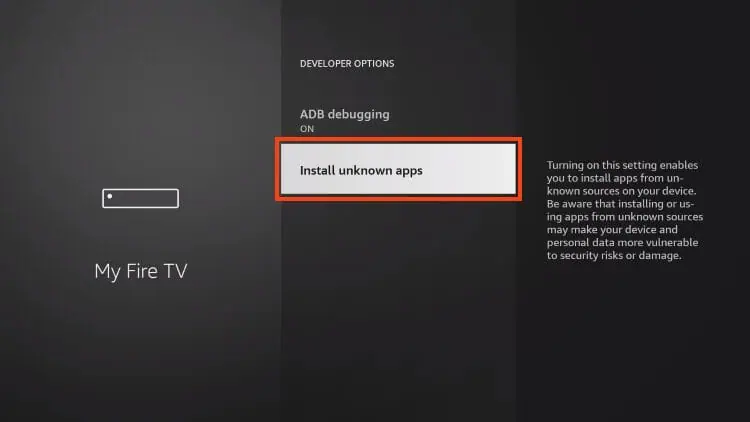
Go to Settings → My Fire TV
→ Developer Options
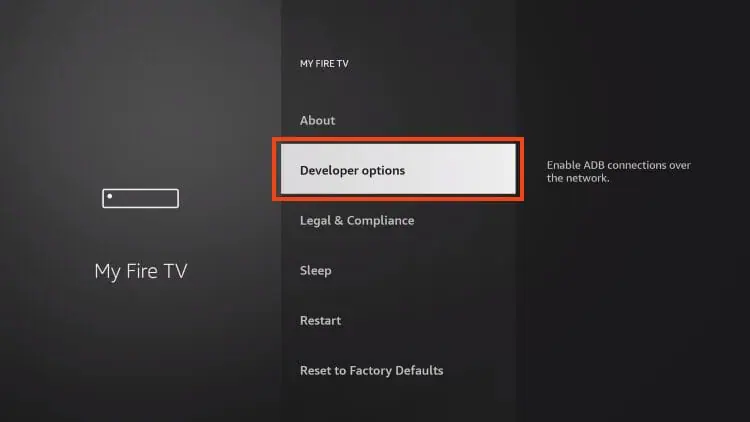
And enable “Install Unknown Apps.”
Install the Downloader tool from the Appstore,
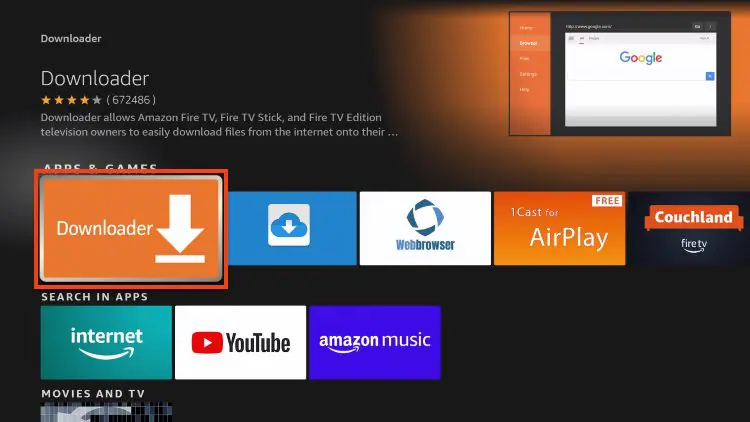
Then enable its permission in the list above.
Enter the official APK address, download it, then press “Install” and “Open.”
Install Perfect Player on Windows
Go to the official Perfect Player site and download the PC version.
Open the downloaded file and follow the installer.
Allow the installation if Windows asks, then launch the app.
Copycat apps using the “Perfect Player” name have appeared since the original was removed from the Play Store. Verify the publisher, or install the APK from a trusted source, to avoid a tampered file.
How to connect after installation, step by step
Unlike modern players, Perfect Player opens to an almost empty screen with no setup wizard, everything is done in the settings, and you first need to know how to reach them. The steps below are identical on Android and Windows.
Open Perfect Player: the app starts on a black screen, which is normal, no channels are loaded yet.
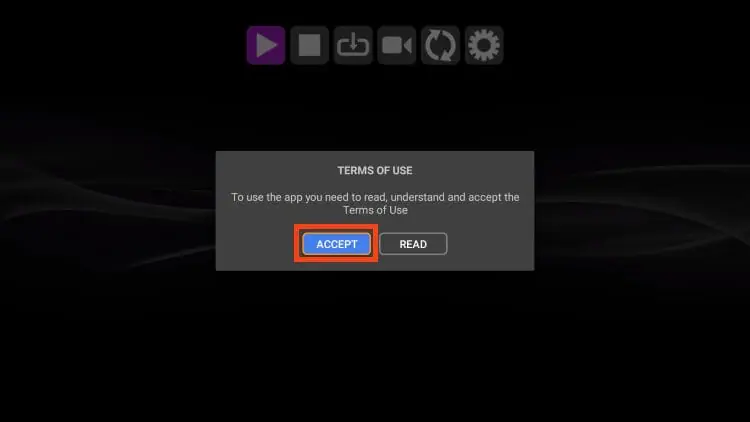
Reveal the on-screen menu by moving the mouse, tapping the screen, or pressing a remote button.
Select the gear (Settings) icon, usually at the top of that menu.
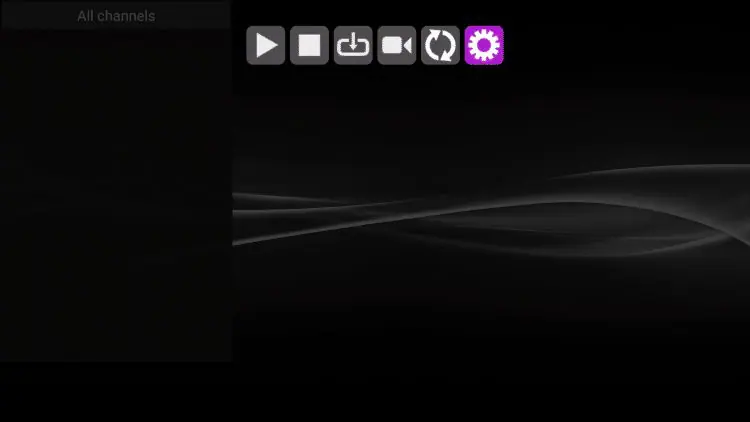
Open the “General” tab,
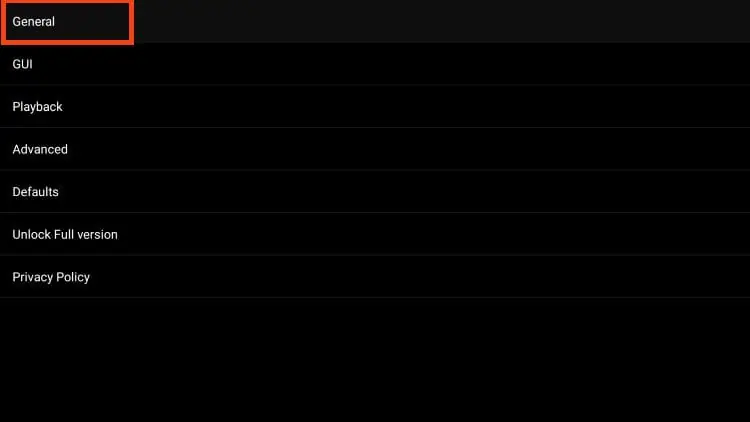
Then select “Playlist 1.”
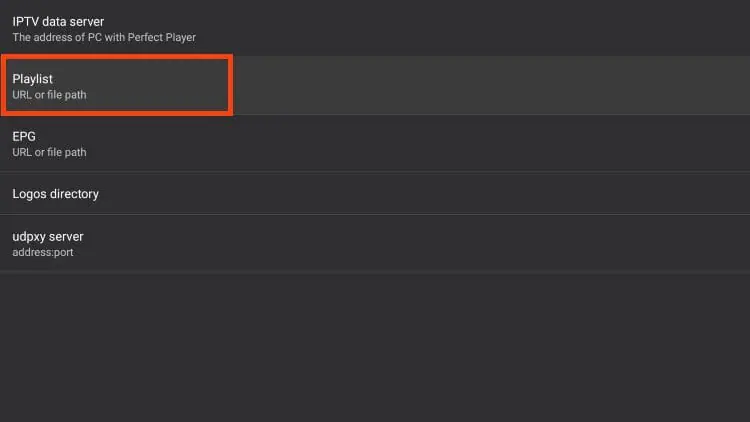
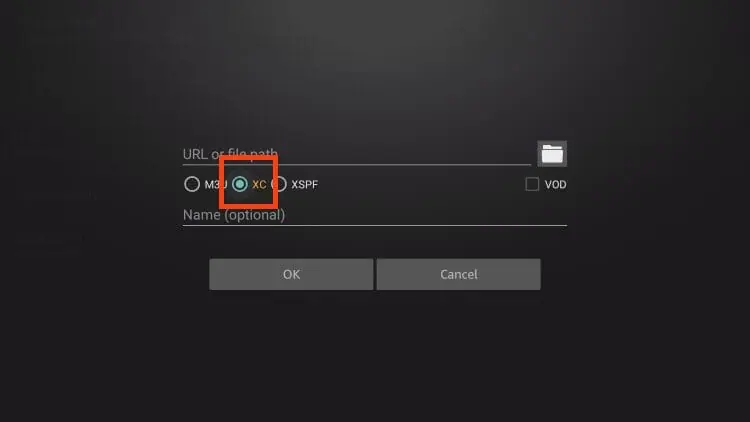
Enter your M3U playlist URL (or the path to a local M3U file) and confirm with “OK.”
A “Playlist update started” message appears in the top-right corner of the screen.
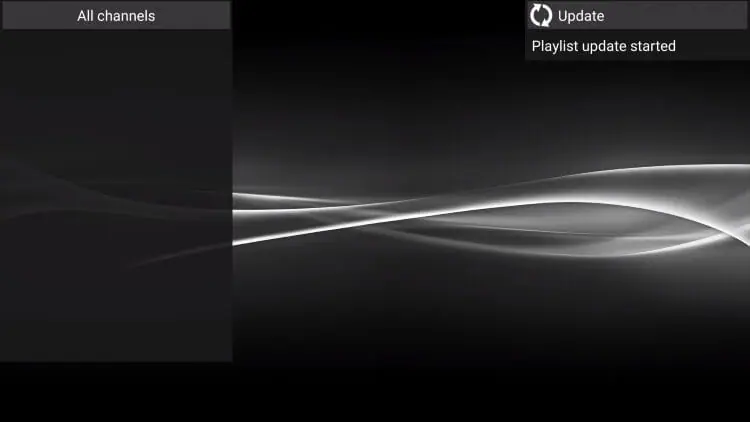
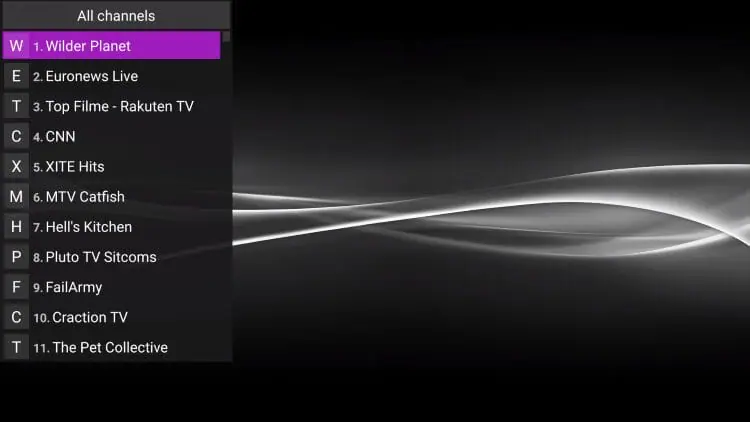
Open the channel list on the side to start watching. Then, back under “General,” select “EPG.”
Paste your XMLTV (or JTV) guide URL and confirm.
Close the settings: Perfect Player loads the playlist and matches the guide.
Open the channel list on the side to start watching.
Using Xtream Codes credentials. Perfect Player has no dedicated Xtream form. If your source gave you Xtream Codes credentials, use the matching M3U URL, in the form http://server:port/get.php?username=YOUR_USER&password=YOUR_PASS&type=m3u_plus — as the playlist, and the equivalent xmltv.php URL as the guide. Copy it exactly, keeping the port after the colon.
The settings that make a difference
A few options noticeably improve the experience. If a channel refuses to play or stutters, open the decoder settings (“Playback” / “Decoder”) and try the hardware decoder, the software decoder, or an external player such as VLC or MX Player, this is often the most effective fix on this app. Organize your channels into groups and favorites so you are not scrolling the whole list.
Turn on “resume last channel” if you want to land on your usual channel at startup. And if your guide loads poorly, reduce the playlist size or double-check the XMLTV URL, since Perfect Player’s EPG is known to be temperamental with large sources.
How to change subtitles and audio ?
Perfect Player’s built-in player has limited subtitle and audio-track handling, so the most reliable route is to hand playback to an external player that offers full track control.
- Open Settings → Playback (or Decoder) and set the player to an external one, such as VLC or MX Player.
- Start a channel or program, which now opens in that external player.
- In the external player, open its on-screen menu and select the subtitle track, choose a language or turn subtitles off.
- Use the same menu to switch the audio track when the stream carries more than one language.
If you stay on the internal decoder, subtitle and audio options may be missing or minimal. Either way, these tracks only appear when the stream actually provides them, no setting can add one the source does not include.
How to change the video quality
Perfect Player has no resolution selector, so quality comes down to the decoder, the source, and your connection. A few levers help.
- If your source lists the same channel in several qualities (FHD, HD, SD), pick a lower one to stop buffering or a higher one for a sharper picture.
- In Settings → Decoder, switch between hardware and software decoding — one often plays a given stream more cleanly than the other.
- For a stubborn channel, route it to an external player like VLC, which handles many formats more gracefully.
- Make sure your connection can carry the stream: wired Ethernet or a strong 5 GHz signal is best for HD.
Remember that Perfect Player, like any player, cannot exceed the quality your source broadcasts — it can only match it or step down to keep playback smooth.
Troubleshooting common issues
- The app crashes with a large playlist: this is its known weakness. Reduce the number of channels, or consider a more modern player.
- A channel will not play: switch the decoder or use an external player in the playback settings.
- The guide is empty or incomplete: recheck the XMLTV URL, and note that loading can be slow or unstable on this app.
- Nothing loads after adding the playlist: check the M3U URL (and the port if you are using an Xtream URL) character by character.
- You cannot find the app on the Play Store: that is expected, it was removed. Install the official APK by sideloading.
Is it safe, and why was it removed from the Play Store?
The app itself is a legitimate, content-free player. It was removed from the Google Play Store in 2019 following a copyright complaint from a broadcaster, on the grounds that its channels could be viewed through it? even though the app contains no streams and all content must be added by the user.
That kind of removal has affected several neutral IPTV players over the years. In practice this means installation happens via an APK, which is safe as long as you get it from a trusted source, and that the app no longer receives fixes, which explains some of its bugs.
The player is legal; the legality of your use depends, as always, on the source you connect to.
Is Perfect Player still worth using in 2026?
Honestly, it depends. Perfect Player keeps real strengths, it is lightweight, plays local files, is highly customizable, and supports XMLTV, but it shows its age. Recent testing points to crashes on large lists and an unreliable guide, and several more modern players now offer a better free experience.
If you have small playlists and enjoy its stripped-down style, it still does the job. If you want a smooth, maintained app that handles large sources comfortably, a player like OTT Navigator, IPTV Smarters Pro, or XCIPTV will serve you better.
FAQ
Is Perfect Player free?
Yes, in its basic version; a paid full version removes ads and adds a few options. The app stays separate from your content source.
Which devices does it run on?
Android, Android TV, and Windows. There is no native iOS, iPad, Apple TV, or Mac version.
Why is it no longer on the Play Store?
It was removed in 2019 after a copyright complaint, despite containing no channels. It now installs via an APK.
Is it legal and safe?
The player is legal and content-free. Safety depends on the APK source (use a trusted one), and the legality of your use depends on the content source you connect to.
Can I use Xtream Codes credentials?
Yes, by using your Xtream account’s M3U URL (the get.php link) as the playlist and the xmltv.php URL as the guide, since there is no dedicated Xtream form.
Why does the app crash so often?
It handles very large playlists poorly and is no longer updated. Reducing the list size or switching decoders helps, but a newer player solves it at the root.
How do I change subtitles or audio in Perfect Player?
Its internal player is limited, so set an external player like VLC or MX Player in the playback settings, then choose the subtitle or audio track from that player’s menu during playback.
How do I change the video quality?
There is no resolution setting. Pick a lower-quality version of the channel if your source offers one, switch between hardware and software decoding, or route the channel to an external player. A good connection matters most.
Conclusion
Perfect Player is a veteran IPTV app, lightweight, customizable, and still functional for small playlists and fans of its set-top-box style. Setting it up is simple once you know where to look: paste your M3U URL under “Playlist 1,” your XMLTV URL under EPG, and adjust the decoder if needed.
Its two limitations should guide your choice, though: it installs via an APK since leaving the Play Store, and it is no longer actively maintained, which shows on large sources. If those trade-offs do not bother you, it gets the job done; if they do, a more modern player will feel smoother. As always, the app is only a tool, the quality and legality of your viewing depend on the source you connect to.