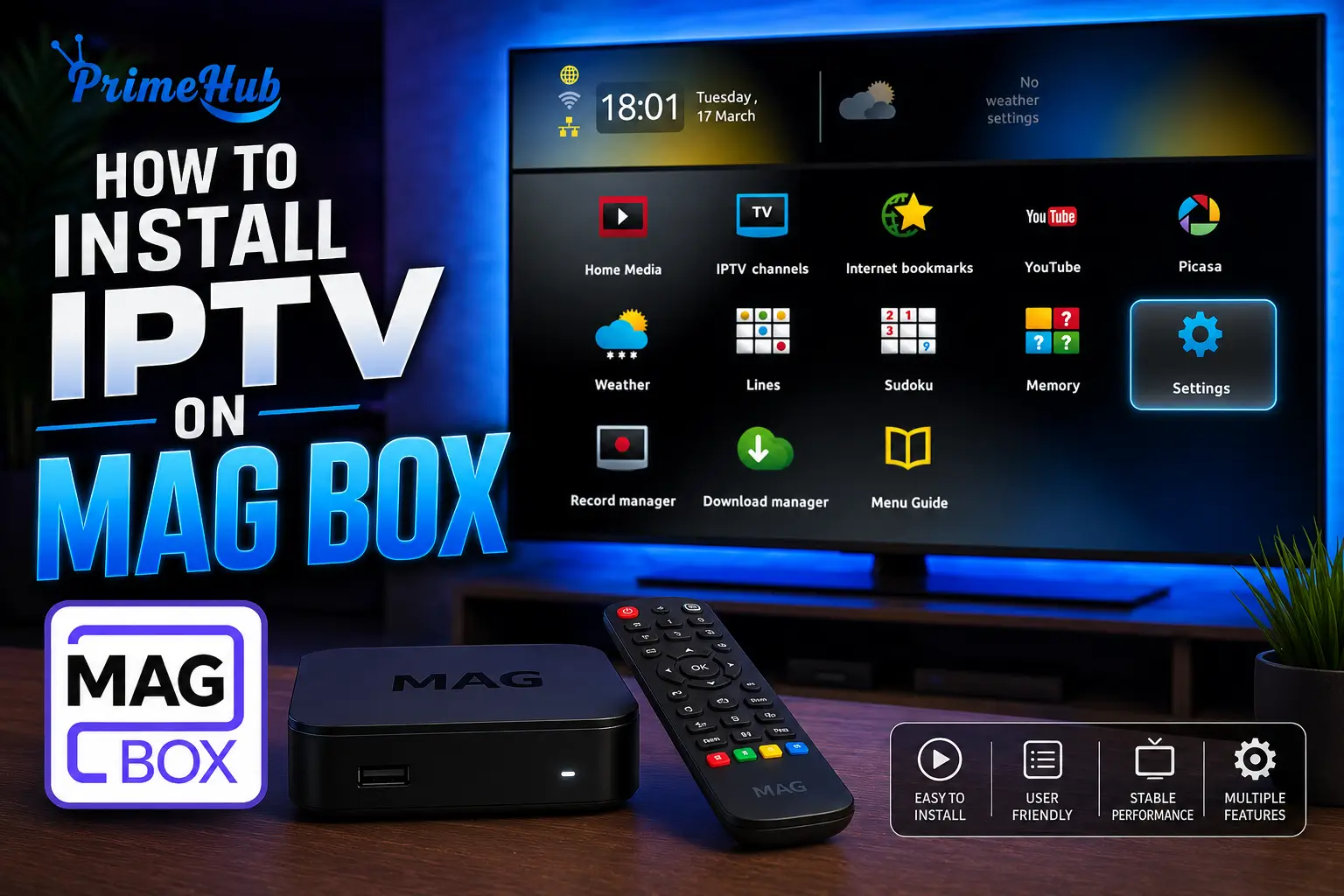
To install IPTV on a MAG box, you need to connect the device to your TV via HDMI, plug it into a stable internet connection (Ethernet recommended), power it on, complete the initial language and network setup, access the Portal URL configuration menu, enter the Portal URL provided by your IPTV provider, and finally test the streaming on a few channels.
MAG boxes are among the most reliable dedicated IPTV devices on the market, designed specifically for IPTV streaming with native support for Portal URL connections, full HD and 4K playback, and built-in EPG features.
The installation takes about 10 minutes and works the same way across all popular MAG models including MAG 254, MAG 322, MAG 420, MAG 424, MAG 524, and MAG 540. For a reliable streaming experience with stable servers, optimized Portal URLs, and full 4K compatibility on your MAG box, a verified IPTV Subscription gives you instant activation, dedicated 24/7 customer support, and a satisfaction-guaranteed policy.
In this guide, you’ll learn the 7 essential steps to install IPTV on your MAG box, configure the Portal URL properly, and optimize the experience for the best possible quality.
Step 1: Unbox and identify your MAG box model
The first step is to unbox your MAG device and identify the exact model, since some setup details vary between generations. Most popular MAG boxes share the same general installation process.
1- Unbox the MAG device and verify all accessories are included.
2 – Check the model number on the bottom sticker (MAG 254, 322, 524, 540…).
3- Confirm the package contains the HDMI cable, power adapter, and remote control.
4- Insert the batteries in the remote control (usually 2× AAA).
5- Verify the box looks intact with no visible damage.
6- Locate the MAC address on the bottom sticker (needed for activation).
7- Place the MAG box near your TV in a well-ventilated area.
Identifying your MAG model is essential because the user interface and menu structure can differ between MAG 254 (older) and MAG 540 (newer Linux-based), although the Portal URL setup process remains universally the same.
Step 2: Connect the MAG box to your TV and network
Connecting the MAG box correctly is critical for stable streaming. The recommended setup uses HDMI for video and Ethernet for the internet connection, but Wi-Fi works on most modern MAG models too.
1 – Plug the HDMI cable into the MAG box and your TV.
2 – Connect the Ethernet cable from your router to the MAG box (recommended).
3 – Or activate Wi-Fi later through the settings if Ethernet isn’t available.
4 – Plug the power adapter into the MAG box and a wall outlet.
5 – Turn on your TV and switch to the correct HDMI input.
6- Verify the connection cables are firmly seated on both ends.
7- Avoid placing the MAG box near other electronic devices that may cause interference.
Ethernet provides significantly more stable streaming than Wi-Fi, especially for 4K content. According to The Verge, wired connections remain the most reliable choice for dedicated streaming devices that handle continuous high-bandwidth video traffic over long sessions.
Step 3: Power on and complete the initial setup wizard
When you power on your MAG box for the first time, an initial setup wizard guides you through basic configuration including language, time zone, and network connection.
1 – Press the power button on the remote control.
2- Wait for the MAG box to fully boot up (15 to 30 seconds).
3- Select your preferred language (English recommended).
4- Choose your country and time zone.
5- Configure the network connection (Ethernet auto-detected or Wi-Fi setup).
6- Test the internet connection from the network settings menu.
7- Accept the terms of use to complete the initial setup.
The initial setup is a one-time process. Once finished, your MAG box remembers all settings even after restarts or power outages, so you won’t need to repeat these steps when starting future viewing sessions.
Step 4: Update the firmware to the latest version
Before configuring the Portal URL, update the MAG box firmware to ensure compatibility with the latest IPTV standards and security patches. This step prevents many common errors.
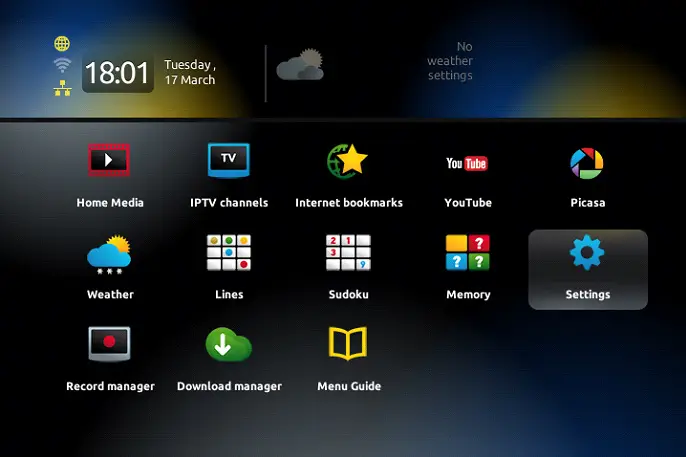
1 – Open the main system menu using the remote.
2 – Navigate to “Settings”
3 – After “System Settings“.
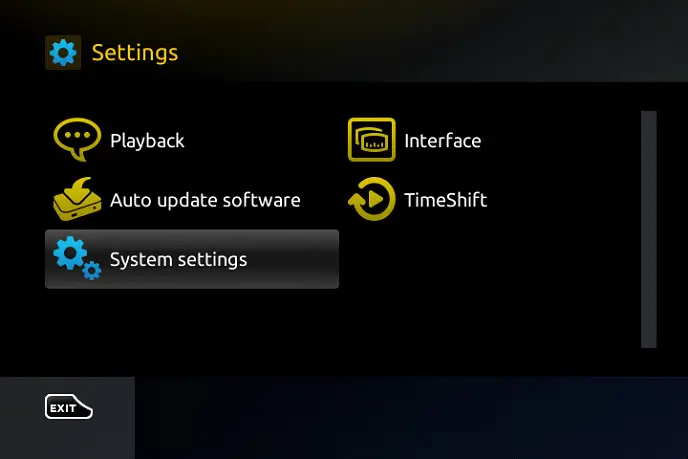
3 – Select “Software Update” or “System Update“.
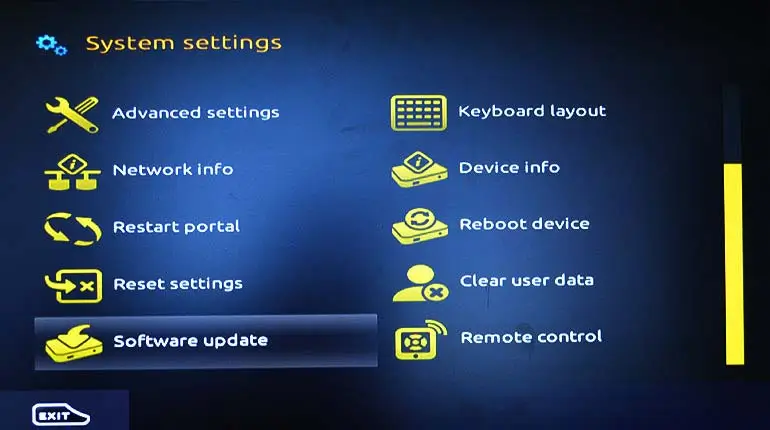
4 – Click “Check for Updates” to find the latest firmware.
5 – Confirm the update if a newer version is available.
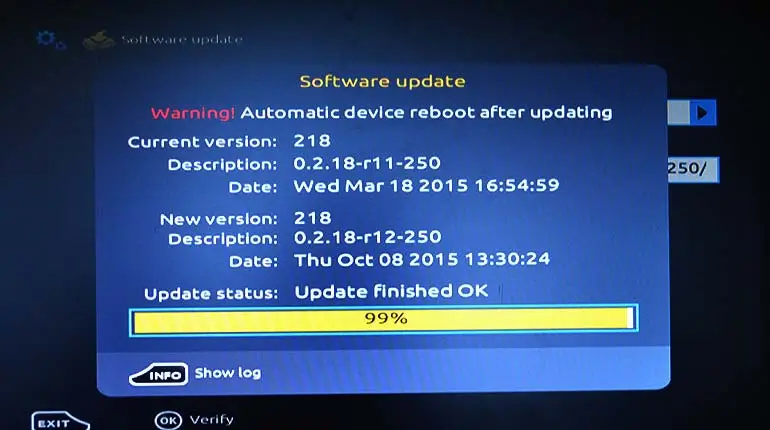
6 – Wait for the download and installation to complete.
7 – Restart your MAG box when prompted.
Updating the firmware is especially important for older MAG models like the MAG 254, which need recent updates to maintain compatibility with modern IPTV servers and security protocols used by most providers in 2026.
Step 5: Access the Portal URL configuration menu
To connect your MAG box to your IPTV service, you need to enter your Portal URL in the dedicated server settings menu. This URL is provided by your IPTV provider.
1 – Press the “Setup” or “Settings” button on the remote.
2 – Select “System Settings” from the menu.
3 – Choose “Servers” or “Portals” depending on your MAG model.
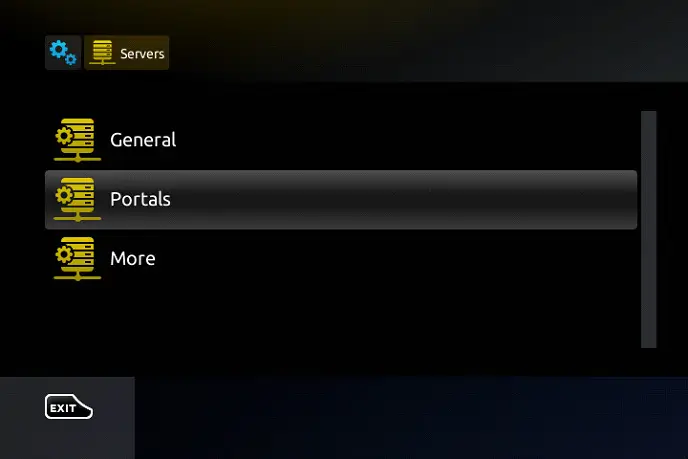
4 – Open “Portal 1” or “Portal Settings“.
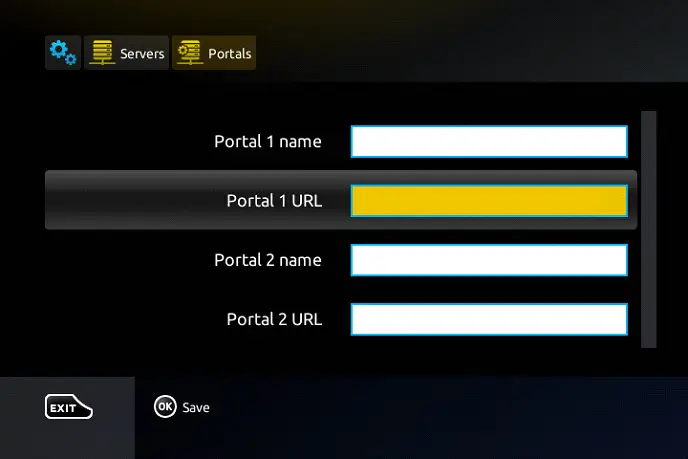
5- Look for the “Portal URL” or “Portal 1 URL” input field.
6 – Clear any default URL that may be already entered.
7 – Prepare to enter your IPTV provider’s URL in the next step.
If you don’t see the “Portal” option in the menu, your MAG firmware may need an update (see Step 4) or you may need to switch user modes from the system settings to access the full configuration features.
Step 6: Enter the Portal URL provided by your IPTV provider
This is the central step where you connect your MAG box to your IPTV service by entering the unique Portal URL sent by your provider after subscribing.
1 – Type the exact Portal URL using the remote keypad or USB keyboard.
2 – Verify the URL starts with http:// or https://.
3 – Include the port number if specified by your provider.
4 – Double-check the URL spelling to avoid loading errors.
5- Save the configuration by selecting “OK” or pressing Save.
6- Exit the settings menu to return to the main screen.
7 – Restart the MAG box to apply the new Portal URL.
The MAG box will then automatically load your full channel list, VOD library, and EPG. Loading time varies between 30 seconds and 2 minutes depending on the catalog size.
For more device-specific tutorials and configurations, check our IPTV installation tutorials which cover step-by-step setups for multiple device types beyond MAG boxes.
Step 7: Test the channels and customize your experience
The final step is to test the streaming on a few different channels to make sure everything works correctly, then customize the interface to fit your preferences.
1 – Browse through the channel categories (sports, movies, news, kids).
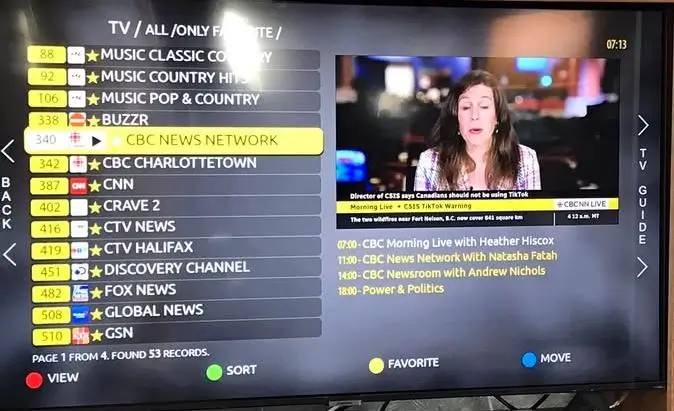
2 – Test an SD channel first to confirm fast loading.
3 – Test an HD and 4K channel to verify image quality.
4 – Verify that the audio is synchronized with the video.
5- Activate the EPG (Electronic Program Guide) for show schedules.
6 – Add favorite channels for quick access.
7- Adjust picture and audio settings to your TV’s capabilities.
If you encounter freezing or buffering, restart the MAG box, verify your internet connection, or contact your IPTV provider’s 24/7 support team. Most issues are resolved within minutes with professional assistance.
Comparison Table: Popular MAG Box Models for IPTV
Here is a complete comparison of the most popular MAG box models compatible with modern IPTV services.
| MAG Model | Processor | Max Resolution | Connectivity | Best For |
| MAG 254 | STi7162 | Full HD 1080p | Ethernet only | Basic users, budget setup |
| MAG 322 | STi7162 | Full HD 1080p | Ethernet + Wi-Fi optional | Standard home use |
| MAG 420 | Amlogic S905X2 | 4K UHD | Ethernet + Wi-Fi | 4K-ready households |
| MAG 424 | Amlogic S905X3 | 4K UHD HDR | Wi-Fi 5 included | Premium 4K experience |
| MAG 524 | Amlogic S905X4 | 4K UHD HDR | Wi-Fi 5 + Bluetooth | Modern setups |
| MAG 540 | Amlogic S905X4 | 4K UHD HDR | Wi-Fi 6 + Bluetooth | Latest generation |
Conclusion
Installing IPTV on a MAG box is a straightforward process that takes about 10 minutes when following the 7 essential steps: unbox and identify your model, connect to TV and network, complete the initial setup wizard, update the firmware, access the Portal URL menu, enter the Portal URL from your provider, and test the channels. MAG boxes remain one of the best dedicated IPTV devices on the market thanks to their native Portal URL support, stable performance, and full 4K compatibility on recent models.
For a complete and reliable experience, choose a verified IPTV provider with stable servers, dedicated 24/7 support, and a satisfaction-guaranteed policy. A trusted IPTV provider compatible with all MAG generations from the MAG 254 to the MAG 540 ensures uninterrupted streaming, professional support, and full access to thousands of HD and 4K channels for the entire household.
FAQ — Install IPTV on MAG Box
How long does it take to install IPTV on a MAG box?
The complete installation takes about 10 minutes, including connecting cables, the initial setup wizard, and Portal URL configuration.
Do I need an Ethernet cable for the MAG box?
Ethernet is strongly recommended for stable streaming, but most modern MAG models also support Wi-Fi if Ethernet isn’t available in your setup.
Can I install IPTV on a MAG 254 in 2026?
Yes. MAG 254 still works perfectly for HD streaming, though it doesn’t support 4K. Make sure to update the firmware before using it with a modern IPTV service.
What is the difference between MAG 322 and MAG 524?
The MAG 524 supports 4K UHD streaming with HDR and newer connectivity (Wi-Fi 5 + Bluetooth), while the MAG 322 is limited to Full HD 1080p.
Why is my MAG box not loading the Portal URL?
Common reasons include a typo in the URL, missing firmware update, MAC address mismatch with the provider, or temporary server downtime.
Can I use multiple Portal URLs on the same MAG box?
Yes. Most MAG models support up to 2 different Portal URLs (Portal 1 and Portal 2), allowing you to test or use multiple IPTV services.
Is the MAG box better than a Fire TV Stick for IPTV?
MAG boxes are dedicated IPTV devices with native Portal URL support, while Fire TV Stick is a generalist streaming device. MAG boxes generally provide more stable IPTV-specific performance.