
To fix IPTV buffering on any device, follow five steps in order: switch to a wired Ethernet connection, clear your app cache and restart the device, activate a VPN to bypass ISP throttling, optimize your DNS and network settings, and adjust your IPTV app’s player and quality settings.
A reliable IPTV USA subscription runs on high-performance anti-freeze servers, but even the best servers cannot fix a weak Wi-Fi signal or a throttled internet connection on your side. Follow these five steps from most effective to least, and you will eliminate buffering on any device in minutes.
Step 1 — Switch From Wi-Fi to a Wired Ethernet Connection
Wi-Fi is the number one cause of IPTV buffering on every device, and replacing it with a wired connection fixes the problem immediately in most households.
- Connect an Ethernet cable from your router to your device : A direct wired connection delivers your full internet speed without the drops, interference, and fluctuations that Wi-Fi causes
- For Fire Stick — use an Ethernet adapter : The Fire Stick has no built-in Ethernet port, so purchase an Amazon Ethernet Adapter or a compatible USB OTG adapter to add wired connectivity
- For Android Box — plug into the built-in port : Most Android TV Boxes have an Ethernet port on the back panel, simply connect a cable from your router and the device switches automatically
- For Smart TV — use the TV’s Ethernet port : Samsung, LG, and Sony Smart TVs all have built-in Ethernet ports, usually located next to the HDMI inputs on the back panel
- If the router is too far — use a powerline adapter : Powerline adapters send internet through your home’s electrical wiring, giving you a wired-speed connection in any room without running long cables
- Disable Wi-Fi after connecting : Go to your device’s network settings and turn off Wi-Fi manually to force it to use the Ethernet connection instead of switching back to wireless randomly.
Step 2 — Clear the App Cache and Restart Everything
A bloated cache forces your IPTV app to work harder, slows down channel loading, and causes stuttering even when your internet speed is fine.
On Fire Stick : Go to Settings > Applications > Manage Installed Applications > select your IPTV app > Clear Cache > then Force Stop the app before reopening it
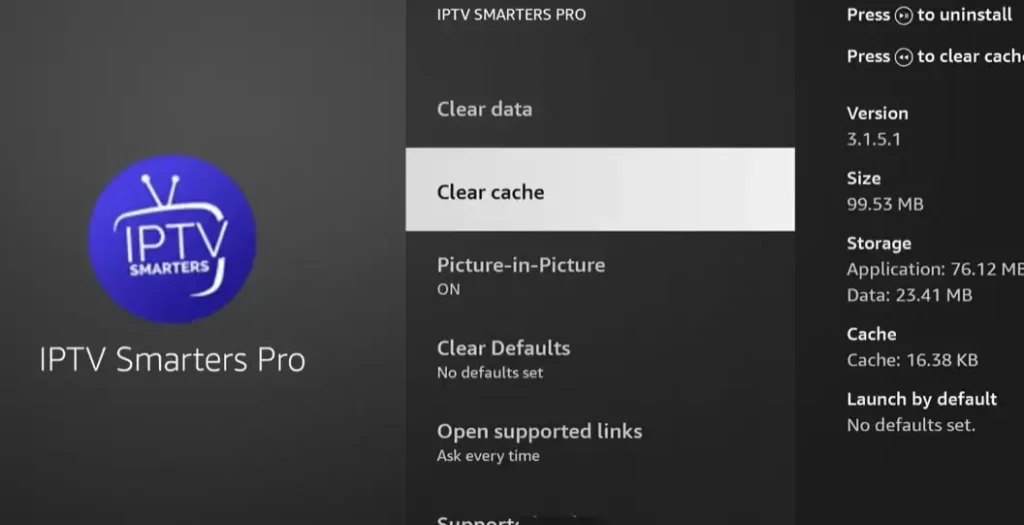
On Android Box : Navigate to Settings > Apps > find your IPTV app >
Storage >
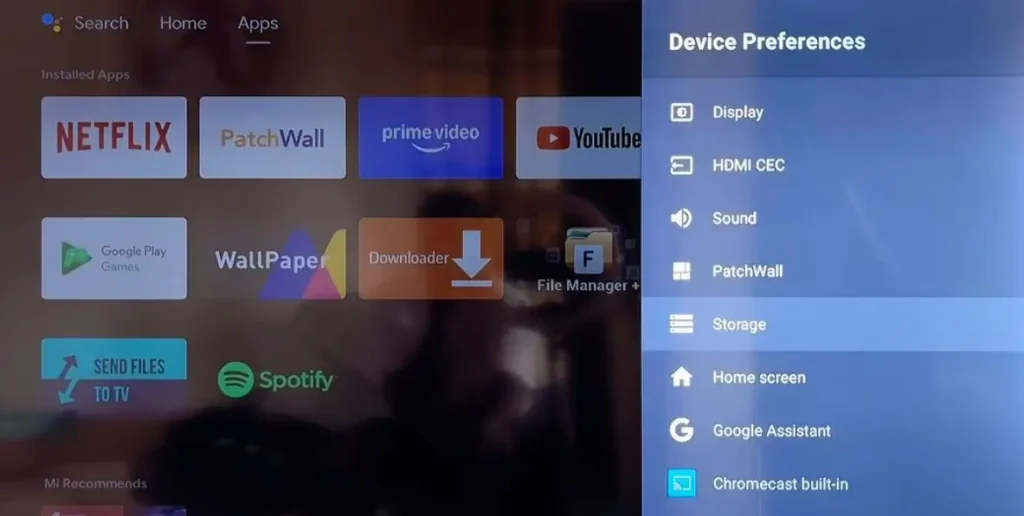
tap Clear Cache,
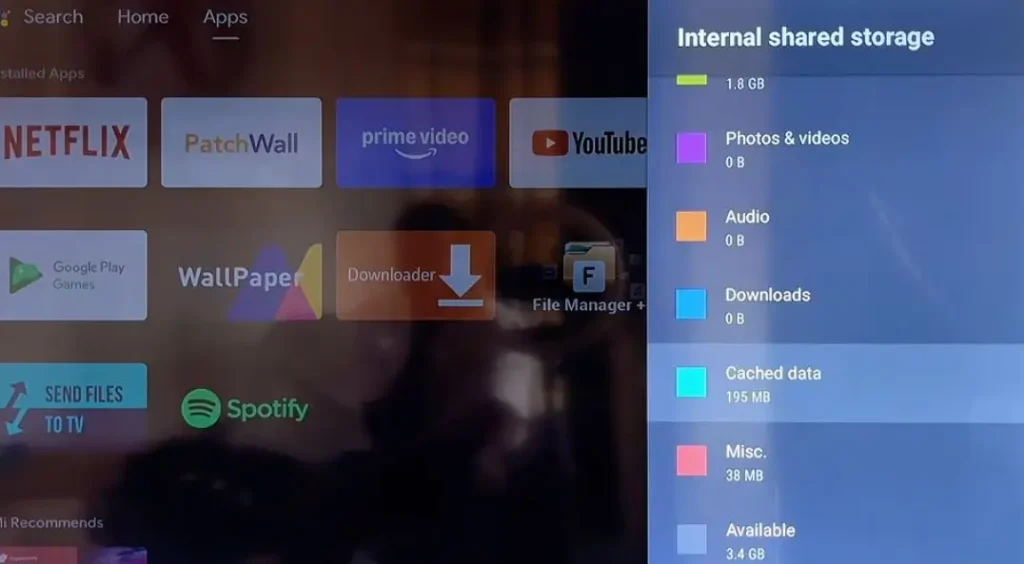
Click Yes to start Clearing Cache, then go back and restart the app from the home screen.
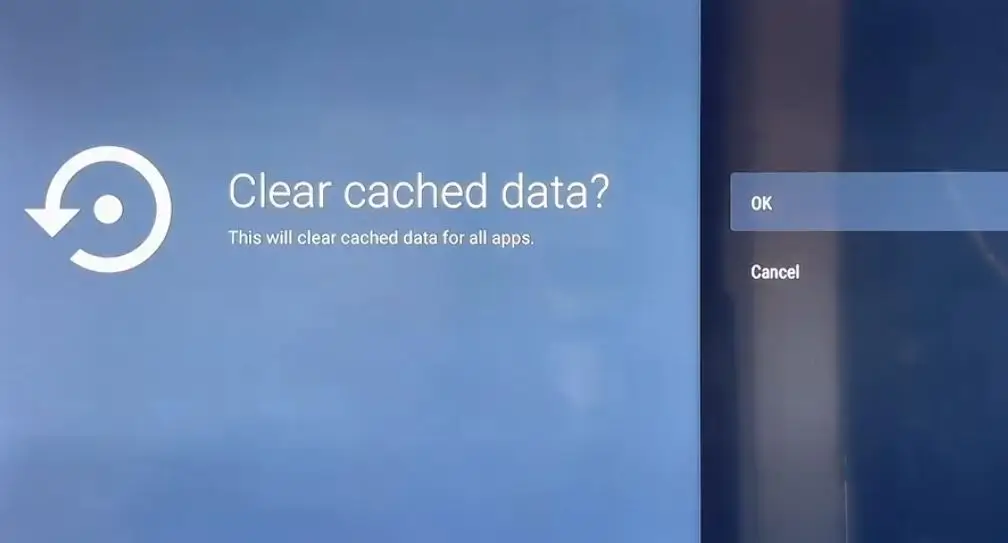
On Smart TV : Samsung and LG TVs do not have a direct cache clearing option, so uninstall the IPTV app completely, restart the TV, then reinstall and re-enter your credentials.
On iPhone or iPad : Delete the IPTV app, power off your device for 30 seconds, turn it back on, reinstall the app from the App Store and log in again.
On PC or Mac : Open the IPTV app settings and look for a cache or temporary files option, or uninstall and do a clean reinstall to eliminate any corrupted data.
Restart your router too : Unplug your router from power, wait 30 seconds, plug it back in, and wait 2 minutes for it to fully reconnect before testing your IPTV again.
Step 3 — Activate a VPN to Bypass ISP Throttling
Many internet providers deliberately slow down streaming traffic during peak hours, and a VPN is the only way to stop them from targeting your IPTV streams.
Download a VPN app on your device : Install a reputable VPN from the App Store, Google Play Store, or Amazon App Store depending on which device you are using
Log in and connect to a nearby server : Choose a server in your own country or a neighbouring region to minimize latency and keep your speeds as high as possible
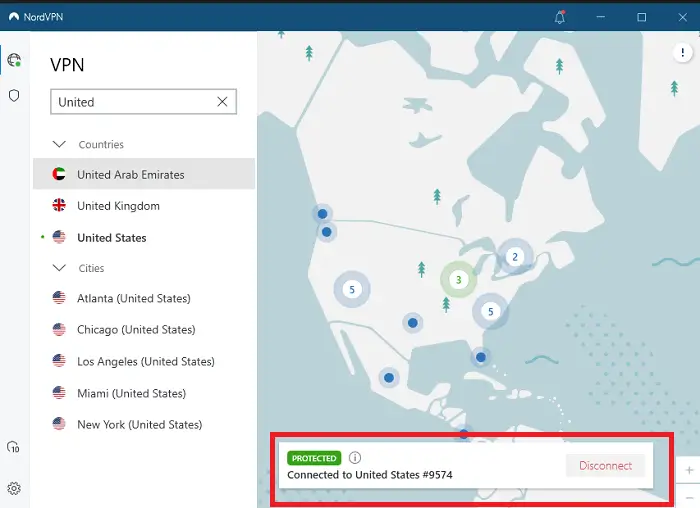
Always start the VPN before opening your IPTV app : Launch the VPN first, wait until it confirms the connection is active, then open your IPTV player so all traffic is encrypted from the start.
Enable the kill switch : Turn on the kill switch in VPN settings so your connection drops entirely if the VPN disconnects, preventing your ISP from seeing unprotected IPTV traffic.
Test with and without the VPN : Stream the same channel with the VPN on and then off, if buffering stops with VPN active, your ISP is confirmed to be throttling your streaming.
Try a different server if speeds drop : Not all VPN servers perform equally, switch to another nearby server if the first one feels slow or adds too much latency to your stream.
Step 4 — Change Your DNS and Optimize Network Settings
Slow DNS servers add invisible delays every time your IPTV app loads a channel, and fixing this takes less than two minutes on any device.
Switch to Google DNS (8.8.8.8 / 8.8.4.4) — Google’s public DNS is fast, reliable, and free to use on any device or router worldwide
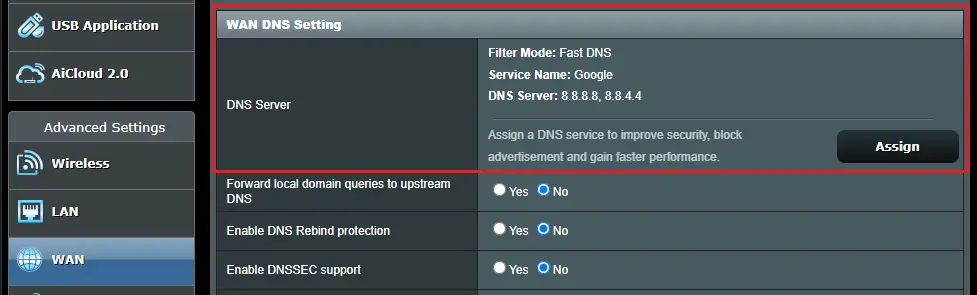
Or use Cloudflare DNS (1.1.1.1 / 1.0.0.1) : Often even faster than Google DNS with added privacy features that prevent your ISP from logging your DNS queries
Change DNS on your router for all devices : Log into your router admin panel (usually 192.168.1.1), find the DNS settings, and replace the default values with your preferred DNS for network-wide improvement
Change DNS on individual devices : On Fire Stick, set DNS during network setup under Advanced, on Android go to Settings > Network > Private DNS, on iPhone go to Settings > Wi-Fi > tap your network > Configure DNS
Disable IPv6 if you experience issues : Some routers handle IPv6 poorly which causes DNS conflicts, switching to IPv4 only can resolve random connection drops
Restart your device after changing DNS : Reboot your streaming device and router to flush the old DNS cache and force all traffic through the new, faster DNS servers
Step 5 — Adjust Your IPTV App Player and Quality Settings
If the previous steps reduced buffering but did not eliminate it completely, fine-tuning your IPTV app settings can fix the remaining issues without sacrificing too much quality.
- Switch the video player engine : In apps like TiviMate or IPTV Smarters, change between the built-in player, ExoPlayer, or VLC engine to find which one performs best on your specific device.
- Lower the stream quality manually : Drop from 4K or Full HD to HD (720p) in the app settings to cut the required bandwidth roughly in half during peak hours.
- Disable auto-quality : Auto mode constantly tries to load the highest resolution, which causes stuttering when your speed fluctuates, locking to a fixed resolution keeps playback stable.
- Increase the buffer size : Some apps let you adjust the buffer from 1 second to 5 or more seconds, giving the stream more preload time before playback begins.
- Enable hardware acceleration : Turn on hardware decoding in player settings so your device’s processor handles the video more efficiently instead of relying on slower software decoding.
- Close all background apps : Force stop every app you are not using to free up RAM and bandwidth, both of which your IPTV app needs for smooth, uninterrupted playback.
Frequently Asked Questions
Why does my IPTV buffer even with fast internet?
Because fast internet does not guarantee stable delivery to your device. Wi-Fi interference, ISP throttling, full app cache, or slow DNS can all cause buffering even on a 100 Mbps connection.
Will an Ethernet cable really stop buffering?
Yes, in most cases. Wi-Fi is the single biggest cause of IPTV buffering. A wired connection eliminates signal drops, interference, and speed fluctuations that cause freezing.
How often should I clear my IPTV app cache?
At least once a week. Cached data builds up over time and eventually slows down the app, causing stuttering and buffering that gets worse the longer you wait.
Does a VPN make IPTV faster or slower?
A VPN can reduce raw speed by 10 to 20 percent, but if your ISP is throttling your streams, the VPN actually makes IPTV faster by preventing that throttling. The net result is usually smoother playback.
What is the minimum speed for buffer-free IPTV?
You need at least 25 Mbps for smooth HD streaming on one device. For 4K or multiple devices streaming at the same time, aim for 50 to 100 Mbps or more.
Can an old router cause IPTV buffering?
Yes. Routers older than 4 to 5 years often cannot handle multiple streams efficiently. Upgrading to a dual-band Wi-Fi 6 router improves speed distribution and significantly reduces buffering on all devices.
What if nothing fixes the buffering?
If you have tried Ethernet, cleared cache, activated a VPN, changed DNS, and lowered quality and it still buffers — the issue is likely on your provider’s server side. Contact their support team to check server status or request a server switch.