To mirror IPTV from your phone to your TV, you can use built-in screen mirroring (AirPlay for iPhone or Chromecast/Miracast for Android), connect a physical HDMI adapter cable, or cast directly from your IPTV app to a compatible smart TV or streaming device.
Each method takes less than 2 minutes to set up and turns your phone into a portable IPTV box that sends your live channels, movies, and series to the big screen without needing any additional subscription or hardware beyond what you already own.
With an IPTV USA subscription, mirroring from your phone means you can enjoy the full experience on any TV in your house, at a friend’s place, or even in a hotel room.
Here are five methods to get it done, from the easiest wireless option to the most reliable wired connection.
Method 1 — Mirror Using Built-In Screen Mirroring (Wireless)
The fastest way to get IPTV from your phone to your TV is to use the screen mirroring feature already built into your phone and your TV — no extra apps or cables needed.
On iPhone (AirPlay)
Swipe down from the top-right corner to open Control Center, tap “Screen Mirroring“, and select your TV from the list of available devices.
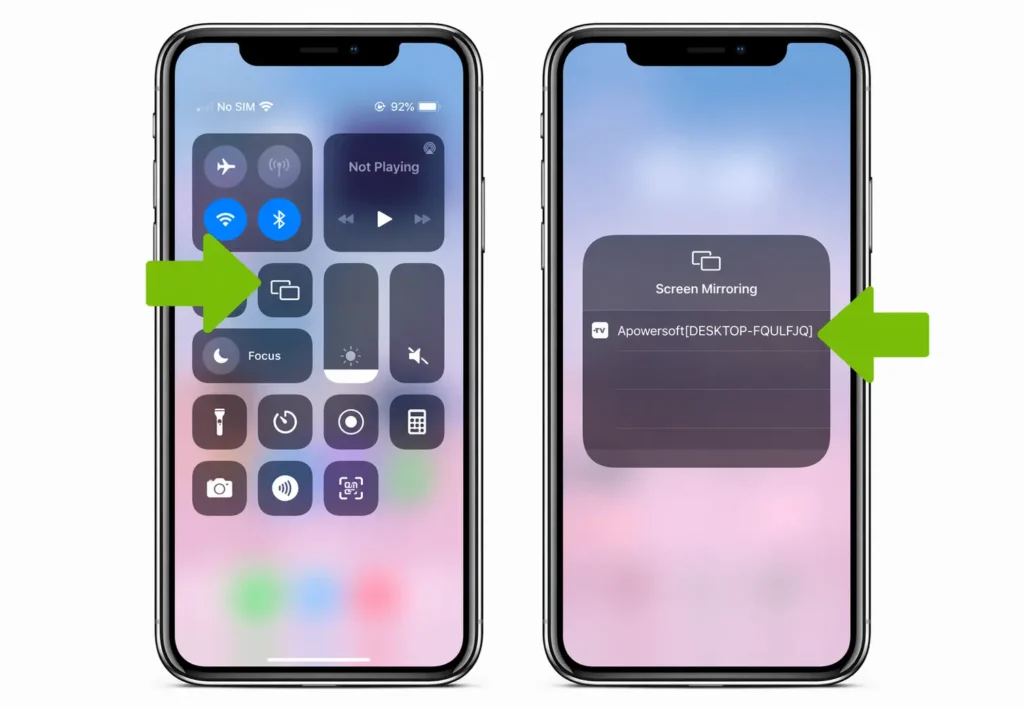
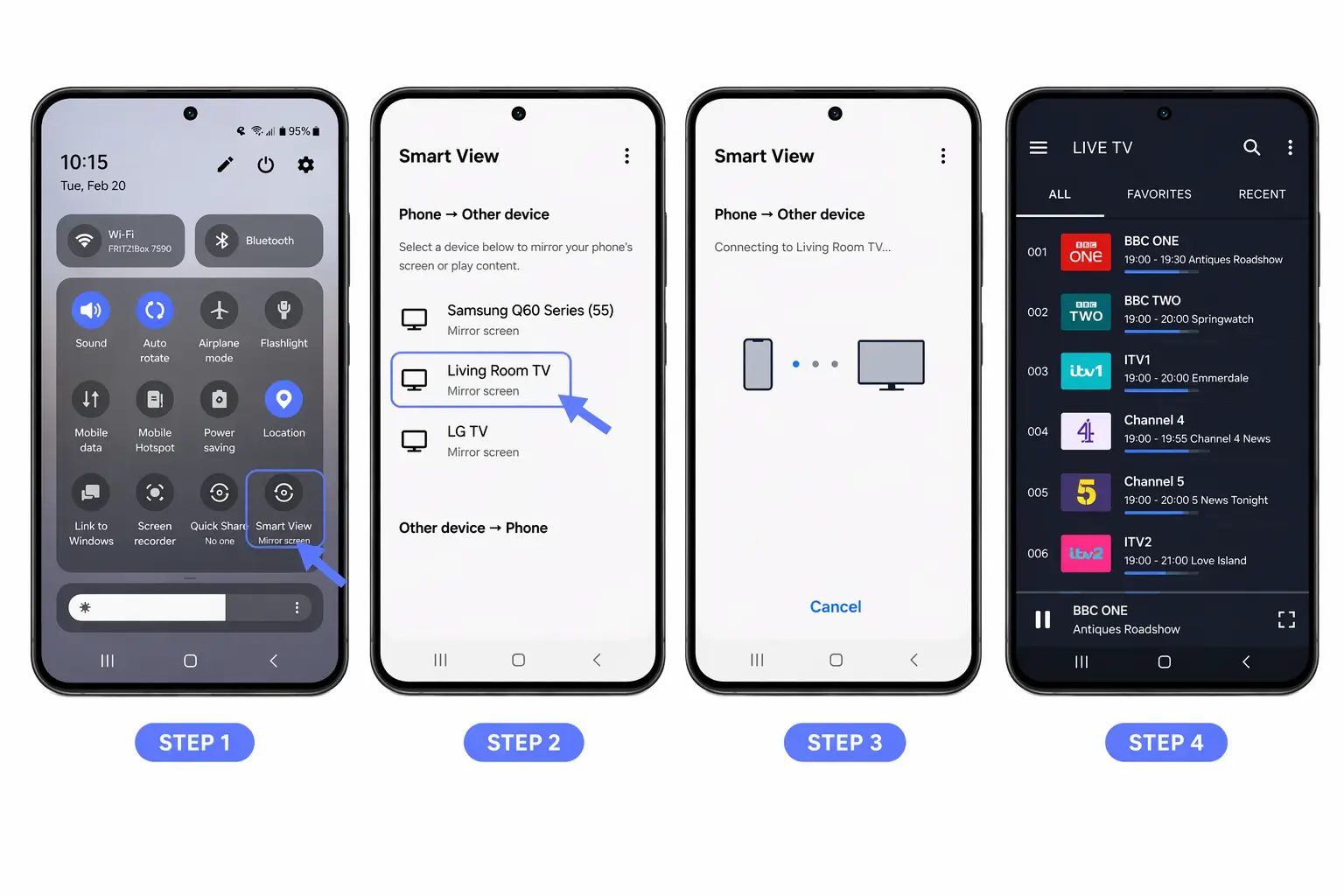
On Android (Smart View / Cast)
Pull down the notification shade, tap “Smart View“, “Cast“, or “Screen Mirroring” depending on your phone brand, then select your TV.
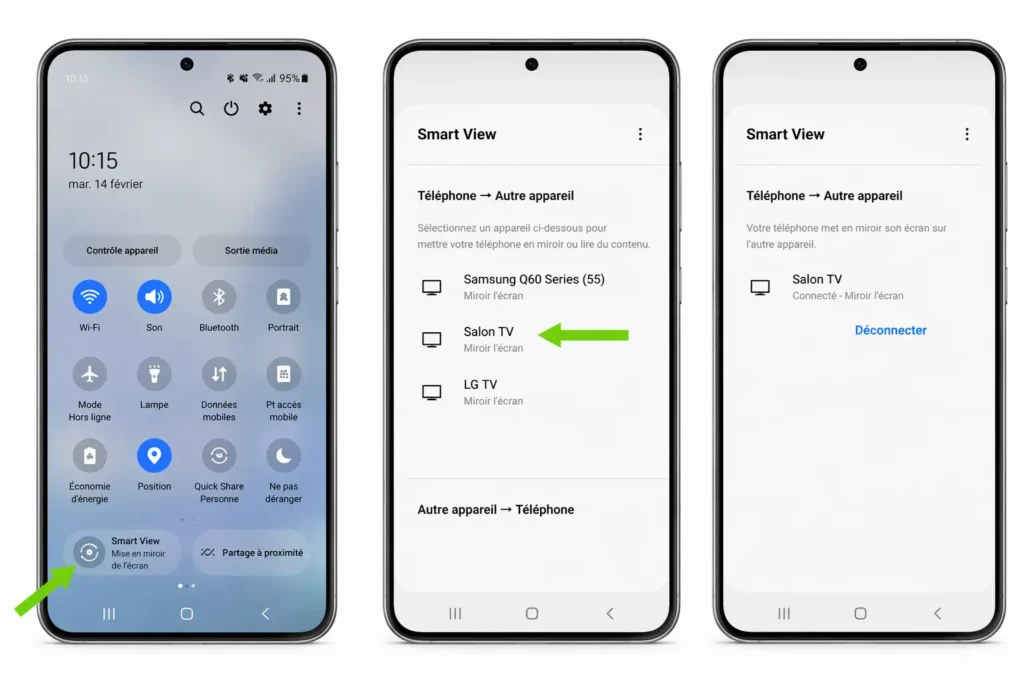
Make sure both devices are on the same Wi-Fi : Your phone and TV must be connected to the exact same Wi-Fi network for wireless mirroring to detect and connect.
Open your IPTV app after mirroring starts : First establish the mirror connection, then launch your IPTV app so the stream displays on the TV immediately.
Lock your phone’s auto-rotate : Set your phone to landscape mode and lock rotation so the image fills the entire TV screen without black bars on the sides.
Keep your phone plugged in : Screen mirroring drains battery fast, so connect your phone to a charger during extended viewing sessions to avoid running out of power mid-stream.
Method 2 — Cast Directly Using Chromecast
If you have a Chromecast plugged into your TV or a TV with Chromecast built in, you can cast your IPTV stream directly from your phone without mirroring the entire screen.
Make sure Chromecast is set up : Your Chromecast device should be plugged into your TV’s HDMI port, powered on, and connected to the same Wi-Fi as your phone.
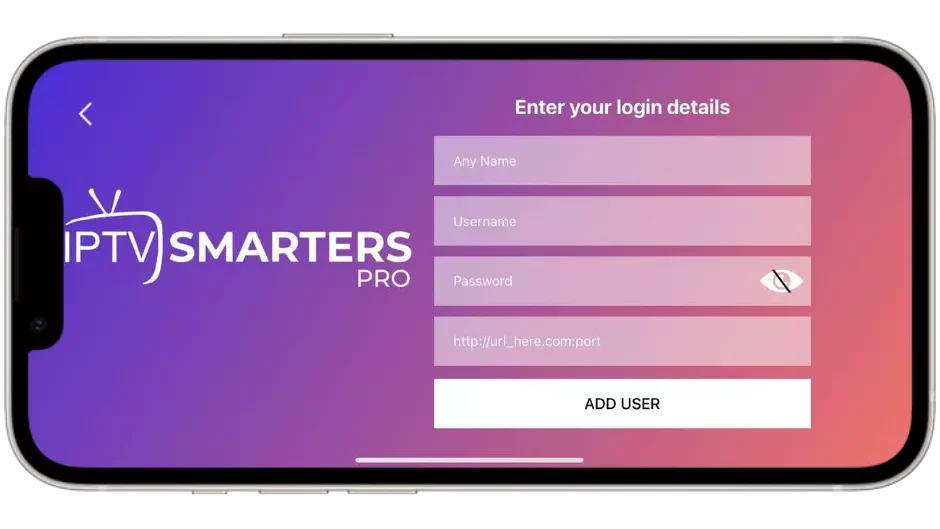
Open your IPTV app : Launch IPTV Smarters, GSE Smart IPTV, or any casting-compatible IPTV player on your phone.
Tap the Cast icon : Look for the small rectangular cast icon (usually in the top-right corner of the app) and tap it to search for available devices.
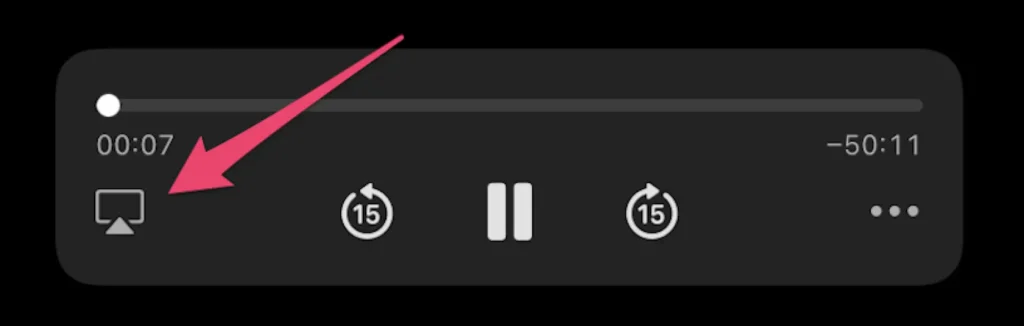
Select your Chromecast or TV : Choose your Chromecast from the device list and wait a few seconds for the connection to establish.
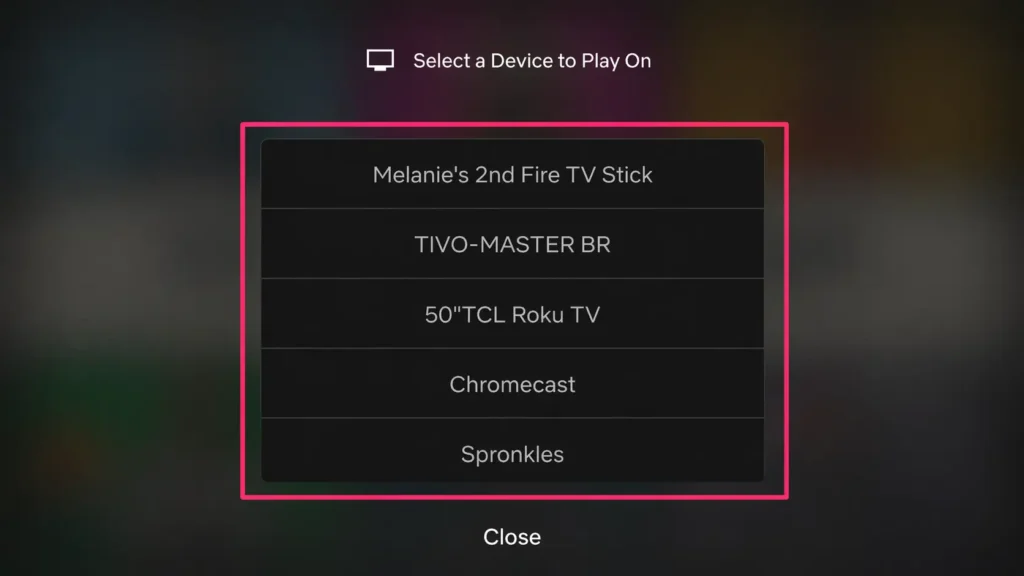
Start playing a channel : Select any live channel or VOD title and it will play directly on your TV through the Chromecast while your phone acts as the remote.
Use your phone freely while casting : Unlike screen mirroring, casting lets you use your phone for other tasks (texting, browsing) without interrupting the stream on the TV.
Method 3 — Connect With an HDMI Adapter Cable (Wired)
A wired HDMI connection is the most reliable method with zero lag, zero buffering caused by Wi-Fi, and the best possible picture quality — perfect for sports and live events.
- Get the right adapter for your phone : For iPhone, use a Lightning to HDMI adapter (Apple Digital AV Adapter), for Android, use a USB-C to HDMI cable or adapter.
- Plug the adapter into your phone : Connect the Lightning or USB-C end into your phone’s charging port.
- Connect an HDMI cable from the adapter to your TV : Run a standard HDMI cable from the adapter directly into any available HDMI port on your television.
- Switch your TV to the correct HDMI input : Use your TV remote to change the source to the HDMI port where the adapter is connected.
- Open your IPTV app and start watching : Launch your IPTV player on your phone and the picture will appear instantly on the TV in full HD with zero wireless delay.
- Charge your phone simultaneously : Most HDMI adapters include a pass-through charging port so you can keep your phone plugged in and powered while streaming to the TV.
Method 4 — Use DLNA to Stream to a Smart TV
DLNA (Digital Living Network Alliance) is a built-in protocol on most Smart TVs that lets your phone send video directly to the TV over your home network without any extra hardware.
- Verify your TV supports DLNA : Most Samsung, LG, Sony, and Android Smart TVs support DLNA natively, check your TV settings under Network or Media Sharing.
- Connect both devices to the same Wi-Fi : Your phone and Smart TV must be on the identical Wi-Fi network for DLNA to discover and connect to the TV.
- Download a DLNA-compatible player if needed : Apps like BubbleUPnP (Android) or iMediaShare (iPhone) allow you to push video from your phone to any DLNA-enabled TV.
- Open your IPTV app and start a stream : Play a channel or VOD title in your IPTV app, then use the DLNA app to redirect the video output to your TV.
- Select your TV from the device list : The DLNA app will detect your Smart TV automatically, tap it to start sending the video stream.
- Adjust quality settings : In the DLNA app settings, set the output resolution to match your TV’s native resolution (1080p or 4K) for the sharpest possible picture.
Method 5 — Mirror to a Fire Stick or Android Box
If your TV is not a Smart TV or does not support AirPlay, Chromecast, or DLNA, you can mirror your phone to a Fire Stick or Android Box that is already connected to the TV.
- Enable screen mirroring on your Fire Stick : Hold the Home button on the Fire Stick remote, select “Mirroring”, and the device will start waiting for a connection from your phone.
- On Android Box : Go to Settings > Display > Screen Mirroring or Miracast and enable the feature so your phone can detect it.
- Open mirroring on your phone : On Android, tap Smart View or Cast in the notification shade, on iPhone, use AirPlay from Control Center (Fire Stick supports AirPlay on newer models).
- Select the Fire Stick or Android Box : Tap your device name from the list and wait for the connection to establish, your phone screen will appear on the TV within seconds.
- Launch your IPTV app : Open IPTV Smarters, TiviMate, or your preferred player on your phone and start watching any channel on the big screen.
- Optimize for full screen : Rotate your phone to landscape and lock the orientation so the IPTV stream fills the entire TV display without letterboxing or black bars.
Frequently Asked Questions
Which mirroring method gives the best picture quality?
A wired HDMI adapter gives the best quality with zero lag and no compression. For wireless options, Chromecast casting delivers the best balance of quality and convenience.
Does mirroring IPTV use more data than watching on the phone?
No. Mirroring sends the same stream to your TV, it does not download the content twice. Your data usage stays the same whether you watch on your phone or mirror to a TV.
Can I mirror IPTV to any TV?
Yes. If your TV has an HDMI port, you can use a wired adapter. If it is a Smart TV, you can use wireless mirroring, Chromecast, or DLNA. Even a non-smart TV works with a Fire Stick.
Does screen mirroring cause lag or delay?
Wireless mirroring can introduce a slight delay of 0.5 to 2 seconds. For general viewing this is unnoticeable, but for live sports where every second matters, a wired HDMI connection eliminates lag completely.
Can I use my phone while casting IPTV to the TV?
With Chromecast casting, yes — your phone acts as a remote and you can use other apps freely. With screen mirroring, anything you do on your phone will show on the TV screen.
Does mirroring drain my phone battery fast?
Yes, especially wireless mirroring. Keep your phone connected to a charger during long viewing sessions. Wired HDMI adapters with pass-through charging solve this problem.
Do I need a special app to mirror IPTV?
No. Most phones have built-in mirroring (AirPlay on iPhone, Smart View on Samsung, Cast on other Android phones). You only need a third-party app for DLNA streaming or if your phone lacks a native mirroring feature.